Docker feels almost magical when you first start using it. You write a configuration file, run one command, and an entire application stack appears.
docker compose up -dA web application, database, cache, monitoring service, and reverse proxy can all be launched in seconds. Everything is isolated, repeatable, and relatively easy to move between environments.
Then, eventually, something breaks.
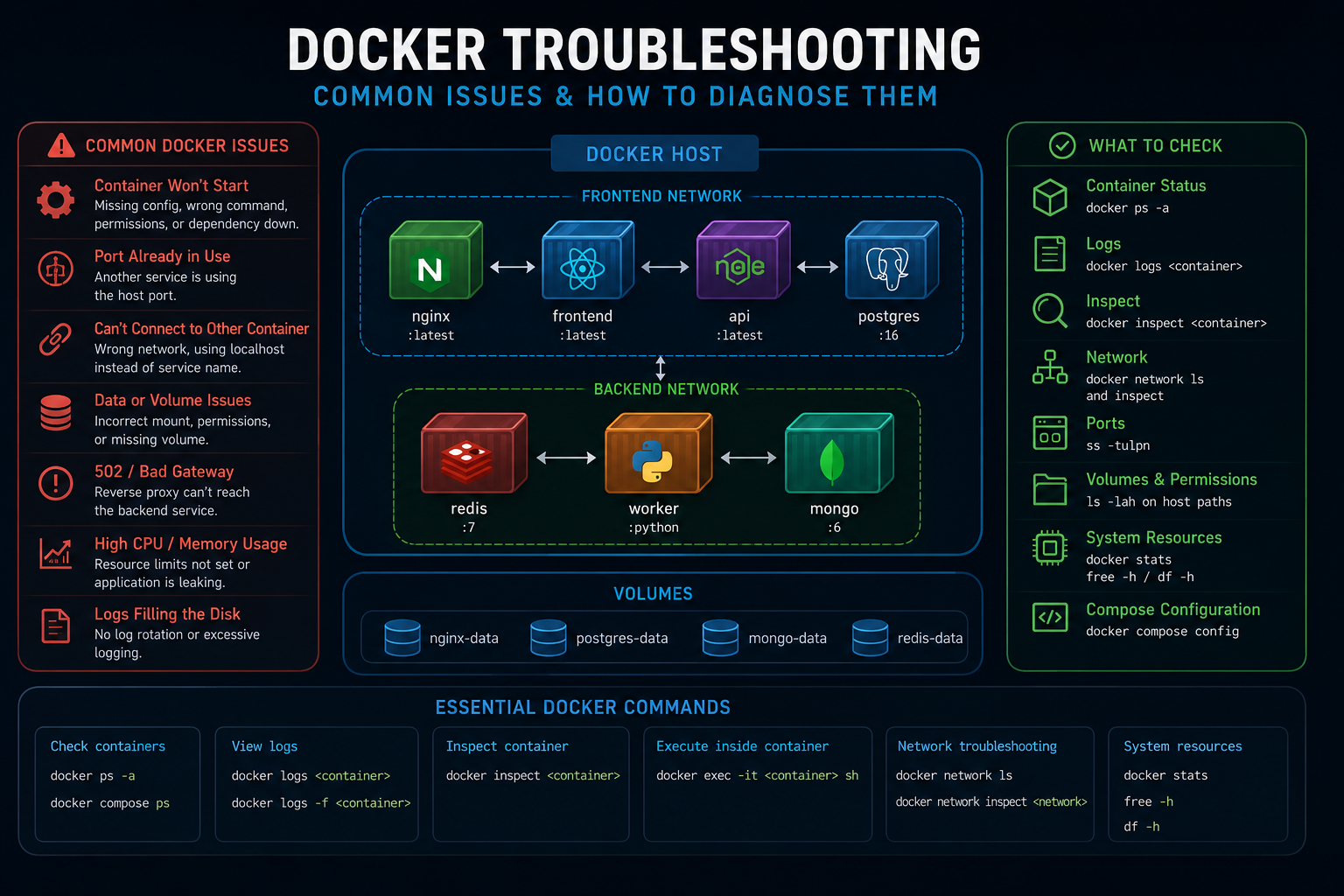
A container refuses to start. A port is already occupied. A database loses access to its storage directory. One service cannot resolve the hostname of another. A reverse proxy returns a 502 error even though the application appears to be running.
That is usually the point where Docker stops feeling like a convenient deployment tool and starts becoming a real infrastructure skill.
This guide is based on the way I approach Docker issues on real Linux servers. It is not a list of commands to copy blindly. It is a troubleshooting method for discovering what failed, understanding why it failed, and solving it without making the situation worse.
Docker Is Usually Not the Real Problem
When a container fails, Docker is often blamed first. In many cases, however, Docker is only exposing a problem somewhere else in the system.
- Incorrect Linux file permissions
- A missing environment variable
- An unavailable database
- A port conflict on the host
- An incorrect volume mount
- A DNS or network configuration problem
- A reverse proxy pointing to the wrong destination
- Insufficient memory or disk space
- An application-level configuration error
The container runtime may be working exactly as designed. The application inside the container may simply be unable to operate under the conditions it was given.
This distinction matters because repeatedly deleting and rebuilding containers rarely fixes the underlying issue. It may temporarily hide it, but the same failure usually returns.
My First Rule of Docker Troubleshooting: Do Not Delete Anything Yet
When a container suddenly exits, the first instinct is often to remove it, rebuild the image, or restart the entire stack. That destroys useful evidence.
Before changing anything, I start by collecting information.
docker ps -aThis shows running and stopped containers, their current states, exposed ports, names, and recent exit information.
docker logs container-nameThe logs frequently reveal the immediate cause: a missing file, invalid password, failed database connection, permission error, or malformed configuration.
docker inspect container-nameInspection provides the container’s network settings, environment variables, volume mounts, restart policy, health status, image information, and runtime configuration.
These three commands answer a large percentage of Docker troubleshooting questions before any corrective action is required.
Understanding Docker Container States
A container can exist in several states, and each state tells a different story.
Running
The main process inside the container is active. This does not automatically mean the application is healthy or ready to receive traffic.
Exited
The container’s main process stopped. It may have completed normally, crashed, or failed during startup. The exit code and logs provide the next clues.
Restarting
The container repeatedly starts and fails while Docker applies its restart policy. This commonly indicates an application crash, invalid configuration, inaccessible dependency, or permission problem.
Created
The container was created but its main process has not started successfully.
Dead
Docker could not properly stop or remove the container. This is less common and may indicate a lower-level runtime, storage, or host issue.
Knowing the state prevents random troubleshooting. A networking issue requires a different investigation from a process that exits because of a syntax error.
Start With the Container Logs
Logs are normally the fastest route to the cause of a Docker issue.
docker logs --tail 100 container-nameThis displays the latest 100 lines without flooding the terminal with the container’s entire history.
docker logs -f container-nameThe follow option streams new log entries in real time. It is useful while restarting a service or reproducing a problem.
docker logs --since 30m container-nameThis limits the output to a recent period, which is especially useful for long-running containers.
When reading logs, I do not look only at the final line. The true cause often appears several lines earlier. The last error may simply be a consequence of the first failure.
Docker Networking: Where Many Problems Begin
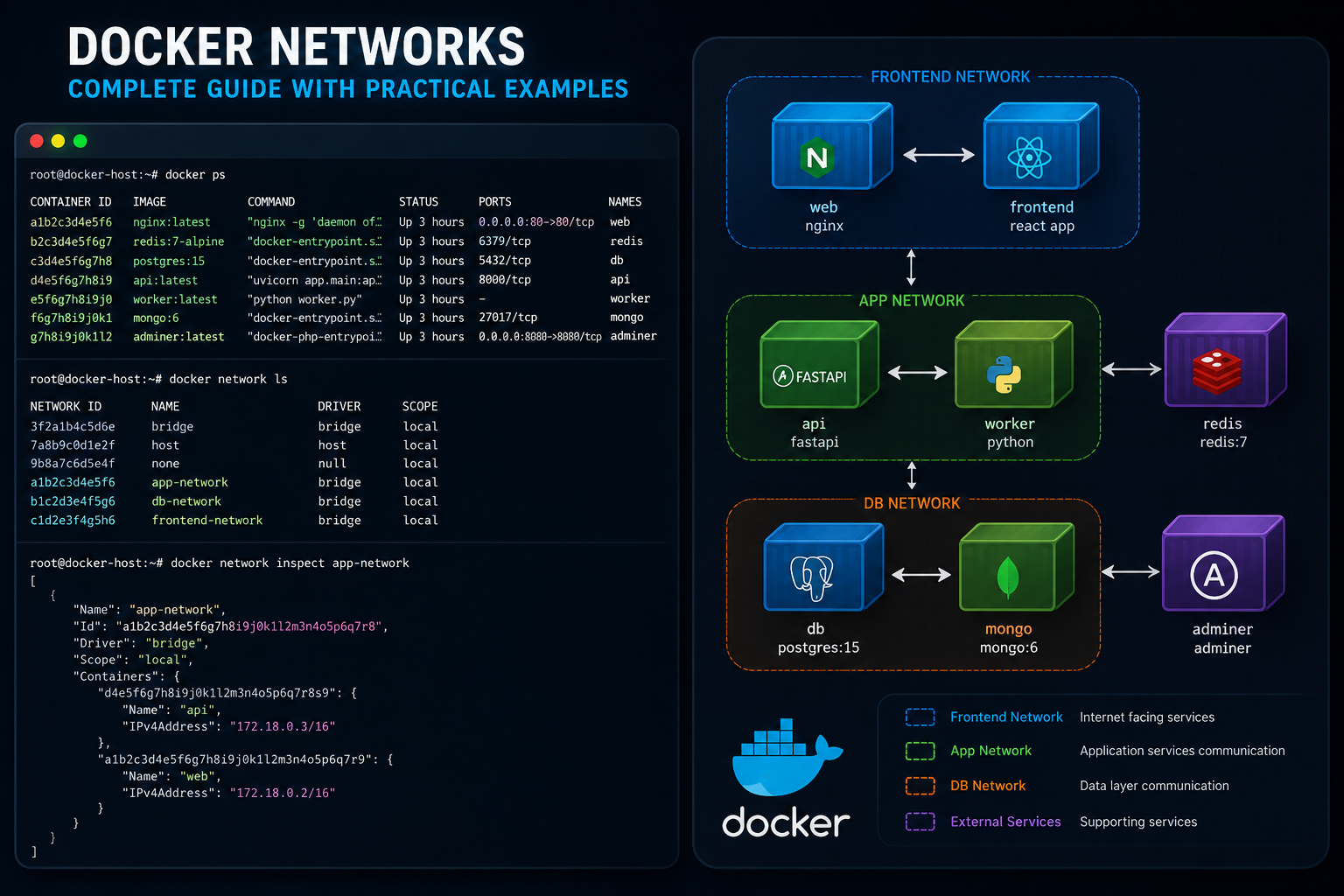
Docker networking is one of the most common sources of confusion, especially when several containers need to communicate.
Imagine a stack containing:
- Grafana
- Prometheus
- A web application
- MySQL or PostgreSQL
- Redis
- Nginx or Apache
Each service may work independently while communication between them fails.
The Localhost Mistake
Inside a container, localhost refers to that container itself. It does not refer to the Docker host, and it does not refer to another container.
For example, if Grafana needs to connect to Prometheus, the data source address should usually use the Docker Compose service name:
http://prometheus:9090Using the following from inside the Grafana container would normally point back to Grafana itself:
http://localhost:9090This small misunderstanding causes a surprising number of connection failures.
Confirm That Containers Share a Network
docker network lsdocker network inspect network-nameThe inspection output shows which containers are attached to a network and which IP addresses were assigned.
Containers on unrelated networks cannot automatically communicate by service name. They must share a Docker network or use another explicitly configured route.
Test Connectivity From Inside the Container
docker exec -it container-name shDepending on the image, Bash may be available instead:
docker exec -it container-name bashFrom inside the container, test name resolution and connectivity using the utilities available in that image:
getent hosts database
curl http://application:8080
wget -qO- http://prometheus:9090/-/ready
A successful result confirms that Docker DNS and network routing are functioning. A failed result narrows the investigation considerably.
Host Ports and Container Ports Are Different
A Docker Compose port mapping such as the following is read from left to right:
ports:
  - "8080:80"
Port 8080 belongs to the Docker host. Port 80 belongs to the application inside the container.
Traffic sent to the host on port 8080 is forwarded to port 80 inside the container.
If another service already occupies host port 8080, Docker cannot bind to it.
ss -tulpnTo check a specific port:
ss -tulpn | grep :8080A common mistake is changing the container’s internal port when only the host-side mapping needs to change.
For example, this avoids a conflict while leaving the application untouched:
ports:
  - "8081:80"
Published Ports Are Not Required for Container-to-Container Traffic
Containers connected to the same Docker network can usually communicate through their internal ports without publishing those ports to the host.
For example, Prometheus can communicate with an exporter on the shared Docker network without exposing that exporter publicly.
This reduces unnecessary exposure and produces a cleaner architecture. Publish only the ports that must be reached from the host, a reverse proxy, or an external client.
Docker Volumes: Persistent Storage Done Properly
Containers should be treated as disposable. Persistent data should not depend on the writable filesystem inside a container.
Without a correctly configured volume, deleting a database container may also delete the database stored inside it.
Named Volumes
services:
  database:
    image: mariadb:latest
    volumes:
      - database-data:/var/lib/mysql

volumes:
  database-data:
Docker manages the storage location while the application writes to its expected internal directory.
Bind Mounts
volumes:
  - ./config:/etc/application
A bind mount maps a specific host path into the container. It is useful for configuration files, development directories, and data that administrators need to access directly.
Bind mounts also introduce more responsibility. The host directory must exist with the correct permissions, ownership, security context, and contents.
Inspect Existing Volumes
docker volume lsdocker volume inspect volume-nameBefore deleting an apparently unused volume, confirm which application created it and whether it contains irreplaceable data.
Permission Problems Are Quiet but Destructive
Permission errors can prevent databases from initializing, web applications from uploading files, monitoring tools from writing data, or services from reading configuration files.
The first checks are simple:
ls -lah
stat path-to-file
stat path-to-directory
The user inside the container may have a different numeric user ID from the owner of the host directory. The names do not matter as much as the numeric UID and GID.
docker exec container-name idCompare that result with the ownership of the mounted host path.
Changing permissions to 777 may appear to solve the issue, but it is usually an unsafe shortcut rather than a proper solution. Correct ownership and the minimum required permissions are preferable.
SELinux Can Affect Docker Bind Mounts
On distributions such as AlmaLinux, Rocky Linux, CentOS Stream, Fedora, and Red Hat Enterprise Linux, standard Unix permissions may look correct while SELinux still blocks access.
Docker Compose bind mounts may require an SELinux relabeling option:
volumes:
  - ./data:/var/lib/application:Z
The uppercase Z assigns a private SELinux label for the container. A lowercase z is used when the content must be shared between multiple containers.
SELinux should not be disabled simply to make a container work. The better approach is to identify the denied access and apply the correct labeling or policy.
Environment Variables Can Break an Entire Stack
Modern containerized applications depend heavily on environment variables for database credentials, API keys, application URLs, encryption secrets, feature flags, and runtime settings.
One missing or incorrectly escaped value can stop a service from starting.
docker compose configThis command renders the resolved Docker Compose configuration. It helps reveal missing substitutions, merged settings, malformed values, and unexpected defaults.
To inspect the environment available inside a running container:
docker exec container-name envBe careful when sharing this output because it may include passwords, tokens, and private service credentials.
Docker Compose Configuration Errors
YAML is readable, but it is sensitive to indentation and structure. A service can be valid YAML while still being configured incorrectly for Docker Compose.
Before deploying a change, validate the file:
docker compose config --quietIf the command returns without an error, the configuration is structurally valid.
For a complete rendered version:
docker compose configThis is especially valuable when Compose files use environment substitutions, overrides, extension fields, or multiple configuration files.
Health Checks Reveal More Than Running Status
A container can be running while the application inside it is unusable.
A database may still be initializing. A web service may be listening but unable to connect to its database. An API may be running but returning errors for every request.
A health check lets Docker test actual application readiness.
healthcheck:
  test: ["CMD", "curl", "-f", "http://localhost:8080/health"]
  interval: 30s
  timeout: 10s
  retries: 3
  start_period: 20s
The application should expose a lightweight endpoint that confirms its critical dependencies are available.
To inspect the current status:
docker inspect --format='{{json .State.Health}}' container-nameA health check does not repair an unhealthy service by itself, but it provides a far more accurate operational signal than process status alone.
Restart Policies Can Hide Repeated Failures
Restart policies are useful in production, but they can create the impression that a service is stable when it is actually crashing continuously.
restart: unless-stoppedIf the application exits every few seconds, Docker restarts it every few seconds. The container may appear in the process list, but the service may never become ready.
Check the restart count:
docker inspect --format='{{.RestartCount}}' container-nameA rapidly increasing number indicates that the restart policy is masking an unresolved failure.
Reverse Proxy Errors: 502, 504, SSL Problems, and Redirect Loops
Reverse proxies such as Nginx, Apache, Traefik, and Caddy often sit between users and containerized applications.
When the public website fails, the application container may still be perfectly healthy. The proxy may simply be unable to reach it.
Common Reverse Proxy Problems
- The upstream hostname is incorrect.
- The proxy uses the host port when it should use the container port.
- The proxy and application do not share a Docker network.
- The application listens only on
127.0.0.1inside the container. - The proxy forwards HTTP while the backend expects HTTPS.
- The application is unaware that the original request used HTTPS.
- The public hostname does not match the certificate.
- Both the proxy and application force redirects, creating a loop.
Test the application directly before blaming the proxy:
curl -I http://127.0.0.1:published-portIf the application responds directly but fails through the domain, the reverse proxy, firewall, DNS, or TLS configuration becomes the main area of investigation.
An Application Must Listen on the Correct Interface
An application inside a container may start successfully while listening only on 127.0.0.1. In that situation, Docker’s network interface may not be able to reach it.
Containerized web applications should usually listen on:
0.0.0.0This allows the process to accept connections through the container’s network interfaces.
This setting is commonly controlled by application arguments or environment variables such as HOST, BIND_ADDRESS, or LISTEN_ADDRESS.
Resource Exhaustion Can Look Like a Docker Failure
Containers share the CPU, memory, storage, and network resources of the host. One service can consume enough resources to affect every other workload.
docker statsThis provides a live view of CPU, memory, network, and block I/O usage for running containers.
On the host, I also check:
free -h
df -h
df -i
uptime
Disk space is not the only storage limit. A filesystem can also run out of inodes, preventing new files from being created even when gigabytes remain available.
Kernel logs may reveal out-of-memory termination:
dmesg | grep -i -E "out of memory|killed process|oom"If the kernel killed the process, the application logs may end suddenly without a useful explanation.
Docker Disk Usage Grows Quietly
Old images, stopped containers, build cache, unused volumes, and unbounded logs can gradually consume the host’s storage.
docker system dfFor more detail:
docker system df -vCleanup commands should be used carefully:
docker image prune
docker container prune
docker builder prune
A broad command such as docker system prune can remove more than expected. Never add the volume-removal option unless the contents of unused volumes have been verified and backed up.
Container Logs Can Fill the Server
Docker’s default JSON logging driver can create large log files when applications produce continuous output.
Log rotation can be configured in Docker Compose:
logging:
  driver: "json-file"
  options:
    max-size: "10m"
    max-file: "5"
This limits the number and size of local log files for that container.
For production systems, centralized logging with tools such as Grafana Loki, Elasticsearch, OpenSearch, or a managed logging service makes incident investigation considerably easier.
Image Architecture and Compatibility Problems
An image built for one CPU architecture may not run correctly on another. This becomes relevant when moving between AMD64 servers, ARM-based cloud instances, Apple Silicon machines, and single-board computers.
Check the host architecture:
uname -mInspect the image:
docker image inspect image-nameErrors mentioning an invalid executable format frequently indicate an architecture mismatch.
Multi-platform builds can be produced using Docker Buildx:
docker buildx build --platform linux/amd64,linux/arm64 .A New Image Tag Does Not Always Mean a Safe Upgrade
Using latest may be convenient, but it makes deployments less predictable. A future image update can introduce a breaking configuration change, database migration, removed feature, or incompatible dependency.
Production deployments are usually safer with an explicit version:
image: grafana/grafana:12.0.2Before upgrading:
- Read the release notes.
- Confirm supported upgrade paths.
- Back up persistent data.
- Record the current working version.
- Test the change outside production where possible.
- Prepare a rollback procedure.
Containers make software easier to replace, but they do not make every application upgrade reversible.
Dependency Startup Order Is Not Readiness
Docker Compose can start services in a defined order, but starting a database container does not mean the database is immediately ready for connections.
An application may launch too early, fail to connect, and exit.
Health checks and dependency conditions can improve this:
services:
  database:
    image: postgres:17
    healthcheck:
      test: ["CMD-SHELL", "pg_isready -U postgres"]
      interval: 10s
      timeout: 5s
      retries: 5

  application:
    image: example/application:1.0
    depends_on:
      database:
        condition: service_healthy
The application itself should still handle temporary dependency failures gracefully. Networks fluctuate, databases restart, and external services occasionally become unavailable.
Backups Matter More Than Recreating Containers
Application containers are normally easy to recreate. Persistent business data is not.
A reliable Docker backup strategy should cover:
- Database-native backups
- Named volumes and bind-mounted data
- Docker Compose files
- Environment files and secrets
- Reverse proxy configurations
- TLS and certificate configuration
- Application-specific settings
- A tested restoration procedure
A backup that has never been restored is only an assumption.
Database backups should normally use the database’s own tools rather than copying active database files blindly. Examples include pg_dump for PostgreSQL and mysqldump or mariadb-dump for MySQL-compatible systems.
Monitoring Changes Troubleshooting From Guesswork to Evidence
Without monitoring, administrators usually investigate after users report a failure. By then, the container may have restarted and the original conditions may no longer be visible.
Metrics help answer better questions:
- When did memory consumption begin increasing?
- Which container experienced the first error?
- Was the disk already nearly full?
- Did network latency rise before the application failed?
- How many times did the service restart?
- Did the host run out of memory?
- Was the reverse proxy still able to reach the backend?
Prometheus, Grafana, node-level exporters, container metrics, uptime probes, and centralized logs provide the historical context that individual Docker commands cannot.
A Practical Docker Troubleshooting Workflow
When a Docker service fails, I use a sequence rather than jumping between unrelated commands.
1. Identify the Exact Symptom
- Does the container fail to start?
- Does it start and then exit?
- Is it running but unreachable?
- Is the application responding with errors?
- Is the public domain failing while the local service works?
- Is the problem intermittent?
2. Check Container Status
docker ps -a3. Read the Logs
docker logs --tail 200 container-name4. Inspect Runtime Configuration
docker inspect container-name5. Validate Docker Compose
docker compose config6. Check Host Resources
docker stats
free -h
df -h
df -i
7. Test Internal Connectivity
Enter the relevant container and test DNS resolution, ports, and HTTP endpoints from the same network context as the application.
8. Check Volumes and Permissions
Confirm that mounts point to the expected locations and that the container user can read or write them as required.
9. Isolate the Reverse Proxy
Test the backend directly. If the backend works, investigate the proxy, DNS, TLS, firewall, and forwarded headers.
10. Change One Thing at a Time
Multiple simultaneous changes make it difficult to identify the actual solution. Apply one correction, test it, and record the result.
Commands I Frequently Use During Docker Investigations
# Show running containers
docker ps

# Show all containers
docker ps -a

# Read recent logs
docker logs --tail 100 container-name

# Follow logs
docker logs -f container-name

# Inspect a container
docker inspect container-name

# Enter a container
docker exec -it container-name sh

# View live resource use
docker stats

# List networks
docker network ls

# Inspect a network
docker network inspect network-name

# List volumes
docker volume ls

# Inspect a volume
docker volume inspect volume-name

# Validate Compose configuration
docker compose config

# View Compose service status
docker compose ps

# Restart one service
docker compose restart service-name

# Recreate one service
docker compose up -d --force-recreate service-name

# View Docker disk usage
docker system df

# View host listening ports
ss -tulpn

# Check disk usage
df -h

# Check inode usage
df -i

# Check memory
free -h
Docker Troubleshooting Mistakes to Avoid
Deleting Containers Before Reading Their Logs
This removes evidence and often leaves the original problem unresolved.
Using Docker System Prune Without Reviewing the Impact
Cleanup commands can remove useful images, build cache, stopped containers, and potentially important storage.
Using Latest Everywhere
Uncontrolled image updates reduce reproducibility and can introduce breaking changes unexpectedly.
Opening Every Port Publicly
Internal services should remain internal unless external access is genuinely required.
Setting Permissions to 777
This weakens security and avoids fixing the actual ownership or access-control issue.
Restarting the Entire Server Too Early
A restart may temporarily restore service while destroying evidence about the original failure.
Changing Several Variables at Once
Even when the issue disappears, it becomes impossible to know which change solved it.
Docker Compose Is Also Infrastructure Documentation
A well-organized Compose file documents the structure of an application environment.
- Which services exist
- Which image versions are deployed
- Which networks connect them
- Which ports are externally accessible
- Where persistent data is stored
- Which environment variables are required
- Which services depend on others
- Which health checks are available
- How containers restart after failure
Six months after a deployment, this information is often more useful than a separate document that was never updated.
Readable service names, comments for non-obvious decisions, pinned image versions, organized environment files, and clear volume names make future troubleshooting much faster.
What Docker Failures Actually Teach
Some of the most useful infrastructure lessons come from deployments that did not work as expected.
A failed container may teach you how Linux permissions interact with numeric user IDs. A 502 error may reveal the difference between host ports and container ports. A disappearing database may demonstrate why persistent volumes matter. An unreachable service may expose a misunderstanding about Docker DNS or network boundaries.
These incidents are frustrating, but they build practical knowledge that clean tutorial environments rarely provide.
Production systems do not normally fail in textbook ways. Several small issues may combine: a nearly full disk, oversized logs, an automatic image upgrade, and an aggressive restart policy can create one confusing incident.
Final Thoughts
Docker makes application deployment more portable, repeatable, and manageable, but it does not remove the need to understand the systems underneath it.
Effective Docker troubleshooting requires knowledge of Linux, networking, storage, process management, application configuration, security, and monitoring.
The most important habit is simple: follow the evidence.
Check the container state. Read the logs. Inspect the configuration. Test the network from the correct location. Verify volumes and permissions. Check the host’s resources. Separate the application from the proxy. Change one thing at a time.
The next time a Docker container fails, resist the urge to delete everything and begin again. The answer is usually already present in the logs, runtime configuration, network design, storage mapping, or host environment.
Docker troubleshooting becomes much less intimidating once every failure is treated as an investigation rather than an emergency.
Frequently Asked Questions About Docker Issues
Why does my Docker container exit immediately?
A Docker container exits when its main process stops. Common causes include invalid configuration, missing environment variables, permission errors, failed dependency connections, and incorrect startup commands. Use docker logs and docker inspect to identify the cause.
Why is my Docker container running but not accessible?
The application may be listening on the wrong interface, the port may not be published correctly, a firewall may be blocking traffic, or the reverse proxy may point to the wrong hostname or port. Test the application both inside the container and directly through the host port.
Why can one Docker container not connect to another?
The containers may not share a Docker network, the wrong service name may be used, or the destination service may not be listening on the expected port. Inside Docker, use the Compose service name rather than localhost.
How do I find which process is using a Docker port?
Run ss -tulpn on the Docker host and filter for the relevant port. If the host port is already occupied, change the host side of the Docker port mapping or stop the conflicting service.
Can restarting Docker solve container problems?
Restarting Docker may temporarily restore a service, but it can also hide the original cause. Logs, container state, disk space, memory, network connectivity, and volume permissions should be checked before restarting the Docker daemon or server.
How can I prevent Docker logs from filling the disk?
Configure log rotation using the Docker logging options, such as max-size and max-file. Production environments may also benefit from centralized logging with Grafana Loki, OpenSearch, Elasticsearch, or a managed logging platform.
Should I use the latest Docker image tag?
The latest tag is convenient but unpredictable. Pinning a tested image version improves repeatability and makes upgrades and rollbacks easier to control.
Are Docker volumes automatically backed up?
No. Docker volumes provide persistent storage, but Docker does not automatically create external backups. Important volumes and databases need a separate, tested backup and restoration process.