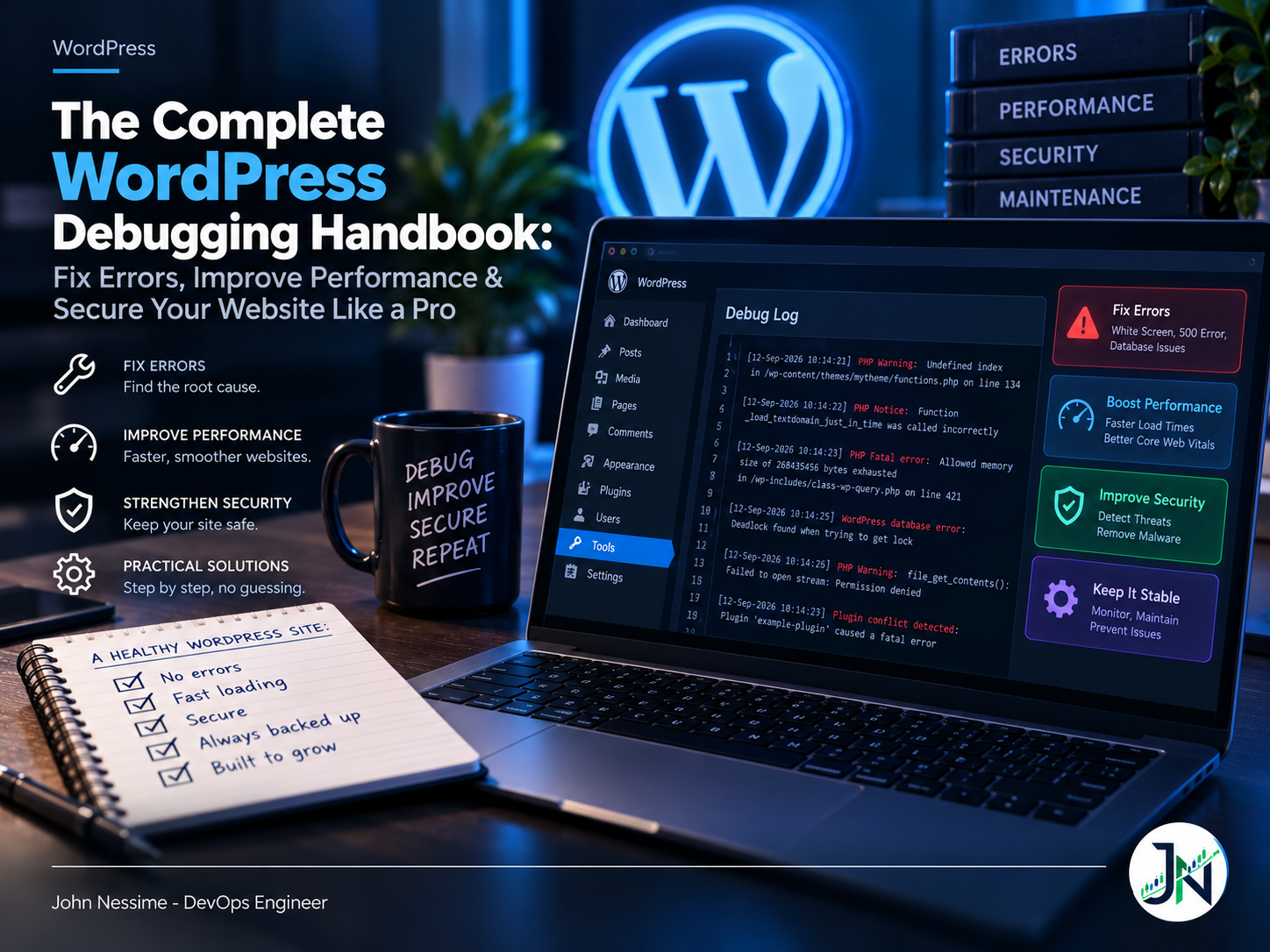
Every WordPress website eventually develops a problem. Sometimes it’s a white screen that appears out of nowhere. Sometimes the admin dashboard suddenly becomes painfully slow. Other times a plugin update breaks an important feature without any warning.
The good news is that most WordPress problems are not random. They leave clues, and if you know where to look, identifying the root cause becomes much easier.
After managing WordPress servers and troubleshooting websites over the years, one lesson has become obvious: guessing rarely fixes anything. A structured debugging process almost always does.
This guide walks through the practical approach professionals use to diagnose WordPress issues, improve performance, and strengthen website security without creating additional problems.
Why WordPress Problems Happen
WordPress itself is remarkably stable. Most issues originate from the environment around it.
- Plugin conflicts
- Theme compatibility issues
- PHP version mismatches
- Database corruption
- Memory limitations
- File permission problems
- Server configuration mistakes
- Caching conflicts
- Security breaches
- Poor hosting performance
Instead of treating every symptom individually, it’s more effective to understand which layer is actually responsible.
Start With Safe Troubleshooting
Before changing anything, make a complete backup.
A proper backup should include:
- Entire WordPress files
- Database
- Uploads folder
- Configuration files
- Custom themes
- Custom plugins
Working without a backup is one of the biggest mistakes beginners make.
Enable WordPress Debug Mode
WordPress includes a powerful debugging system built directly into the core.
Edit the wp-config.php file and enable debugging.
define('WP_DEBUG', true);
define('WP_DEBUG_LOG', true);
define('WP_DEBUG_DISPLAY', false);
This records PHP warnings and errors inside the debug.log file without exposing them to website visitors.
Never leave debugging enabled permanently on a production website.
Common WordPress Errors Explained
White Screen of Death
The website displays nothing except a blank white page.
Typical causes include:
- PHP fatal errors
- Plugin conflicts
- Memory exhaustion
- Corrupted files
The debug log usually reveals the exact file responsible.
500 Internal Server Error
This generic server error often results from:
- Broken .htaccess rules
- PHP configuration
- File permission issues
- Server resource exhaustion
Checking the Apache or Nginx error logs is usually the fastest path to identifying the real problem.
Database Connection Error
This message means WordPress cannot communicate with MySQL.
Possible reasons include:
- Incorrect database credentials
- Database server unavailable
- Corrupted database tables
- Exceeded hosting limits
Finding Plugin Conflicts
Plugins are responsible for the majority of WordPress issues.
Instead of uninstalling everything randomly:
- Disable all plugins.
- Confirm whether the issue disappears.
- Enable plugins one at a time.
- Identify the plugin causing the conflict.
This systematic approach saves hours of unnecessary troubleshooting.
Theme Debugging
The active theme can introduce problems through:
- Outdated code
- Poor optimization
- Deprecated PHP functions
- JavaScript conflicts
Temporarily switching to a default WordPress theme like Twenty Twenty-Six quickly determines whether the issue originates from the theme.
Browser Developer Tools
Modern browsers include excellent diagnostic tools.
The Developer Console helps identify:
- JavaScript errors
- Failed network requests
- Slow resources
- CSS conflicts
- Mixed HTTPS content
Many frontend issues become immediately obvious after opening the browser console.
Improving Website Performance
Performance problems are often easier to detect than to solve.
Start by measuring instead of guessing.
Check Page Speed
Review:
- Largest Contentful Paint (LCP)
- Interaction to Next Paint (INP)
- Cumulative Layout Shift (CLS)
- Time to First Byte (TTFB)
These Core Web Vitals provide a realistic picture of user experience.
Optimize Images
- Convert images to WebP
- Resize oversized files
- Compress before uploading
- Lazy load below-the-fold images
Reduce Plugin Bloat
Installing dozens of plugins increases:
- Database queries
- PHP execution time
- JavaScript loading
- Memory consumption
Only keep plugins that provide measurable value.
Use Object Caching
Redis and Memcached dramatically reduce repeated database queries on busy websites.
Database Maintenance
Over time databases accumulate:
- Expired transients
- Spam comments
- Post revisions
- Unused metadata
- Orphaned records
Cleaning these periodically keeps queries efficient.
Server-Level Debugging
Not every issue originates inside WordPress.
Sometimes the operating system is the real culprit.
Monitor:
- CPU usage
- RAM usage
- Disk utilization
- Disk I/O
- PHP-FPM workers
- MySQL performance
- Apache workers
- Nginx requests
Server monitoring often exposes bottlenecks invisible from inside WordPress.
Security Troubleshooting
Performance degradation can sometimes indicate a compromised website.
Watch for:
- Unexpected administrator accounts
- Unknown plugins
- Modified core files
- Suspicious PHP files
- Spam redirects
- Hidden malware
If malware is suspected:
- Take the website offline if necessary.
- Create a forensic backup.
- Scan every file.
- Replace WordPress core files.
- Rotate all passwords.
- Regenerate security keys.
- Review access logs.
Useful Log Files
Professional troubleshooting relies heavily on logs.
- WordPress debug.log
- Apache error.log
- Nginx error.log
- PHP-FPM logs
- MySQL logs
- Server syslog
- Security audit logs
Learning to read logs is one of the most valuable troubleshooting skills a WordPress administrator can develop.
A Practical Debugging Workflow
- Reproduce the problem.
- Check browser console.
- Enable debug logging.
- Review server logs.
- Disable plugins.
- Switch themes.
- Verify PHP compatibility.
- Check database health.
- Test server resources.
- Validate the fix.
- Monitor after deployment.
Following the same workflow every time eliminates unnecessary trial and error.
Preventing Future Problems
The easiest issue to solve is the one that never happens.
Good maintenance habits include:
- Automatic backups
- Routine updates
- Security monitoring
- Uptime monitoring
- Performance dashboards
- Database optimization
- Log reviews
- Staging before production deployments
Preventive maintenance significantly reduces downtime and emergency fixes.
Final Thoughts
Debugging WordPress is less about memorizing error messages and more about following a logical process. Every warning, failed request, or slow query tells part of the story. By collecting evidence instead of making assumptions, you can solve problems faster and with greater confidence.
Whether you’re maintaining a personal blog, managing business websites, or supporting client projects, investing time in understanding debugging techniques pays dividends in stability, performance, and security. A well-maintained WordPress site not only loads faster and ranks better in search engines but also provides visitors with a more reliable and trustworthy experience.
Reliable websites are not built by avoiding problems—they’re built by knowing exactly how to diagnose and solve them when they appear.