The ticket said “staging is approved, push it live.” Copy the files, import the database, change the two URL fields in Settings, done. The homepage loads. Then the slider is empty, a third of the images 404, and the page builder renders a grey box where a section used to be.
That is the moment most people properly meet the command line, usually at the worst possible time. The dashboard is fine for editing a post. It is a bad tool for anything that touches a thousand rows, twelve plugins, or two servers at once.
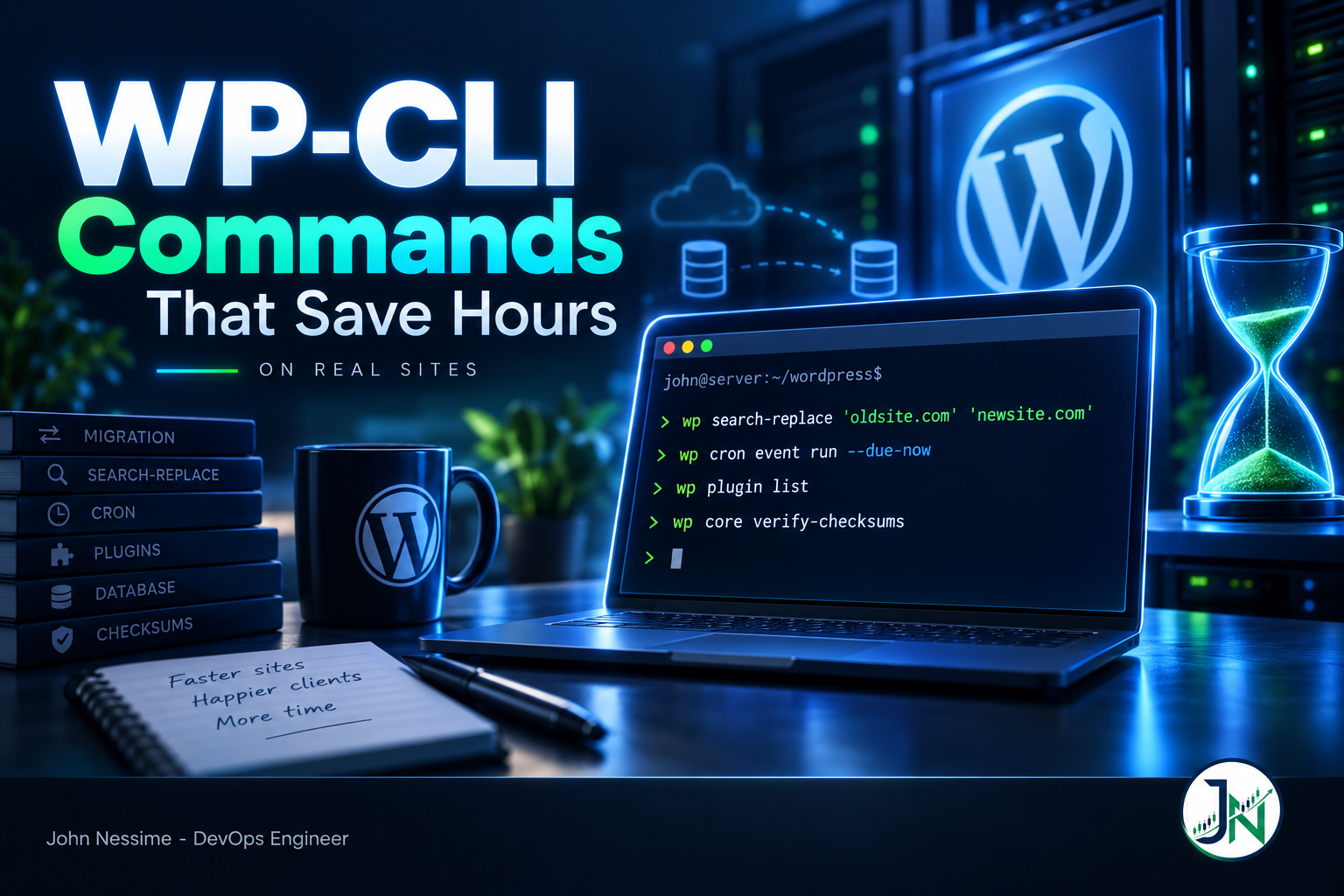
This is a working list of the WP-CLI commands that save hours, grouped by the job that eats the hours rather than by command name. Each section leads with the failure mode, because with a couple of these the command finishes, prints Success, and leaves you with a subtly broken database that nobody notices for a week.
The migration hour: search-replace, and the one that bites back
Changing a domain by running SQL against wp_posts is how sites break. WordPress stores a great deal of configuration as PHP serialized arrays, and serialized strings carry their own byte length. Change https://old.example.com to https://new.example.org with a plain UPDATE ... REPLACE() and the length prefix no longer matches the string. PHP refuses to unserialize the value, returns false, and the widget or page-builder section silently renders nothing.
The whole point of wp search-replace is that it unserializes, replaces, and reserializes, so the lengths stay correct. Run it in dry-run mode first, every single time:
wp search-replace 'https://old.example.com' 'https://new.example.org'
  --all-tables-with-prefix
  --skip-columns=guid
  --precise
  --report-changed-only
  --dry-run
What each flag is actually doing:
--dry-runruns the whole operation and prints the report without writing. The report has a “Type” column:PHPmeans the value was serialized and handled properly,SQLmeans a plain string replacement. If you expected hundreds of changes and see zero, your search string is wrong, not the tool.--all-tables-with-prefixwidens the scope to every table sharing your prefix, not just the tables registered with$wpdb. Plugins that create their own tables live here.--all-tablesgoes wider still and will happily rewrite tables belonging to a completely different application sharing the database, so reach for the prefix version first.--skip-columns=guidis the one people leave off. Theguidcolumn is a permanent identifier for feed readers, not a URL to be followed. Rewriting it makes every historical post look brand new to anything that has subscribed to your feed.--preciseforces PHP-side serialization handling on every column instead of letting MySQL do the simple cases. It is slower. On a large database it is noticeably slower. It is also the difference between “probably fine” and “definitely correct”.--report-changed-onlytrims the report to tables that actually changed, which makes the output readable instead of a wall of zeros.
Read the dry-run output. When the numbers look right, run the identical command without --dry-run.
The step everyone forgets
You changed the database. Every cache layer still holds the old values. On a site with Redis or Memcached behind a persistent object cache drop-in, the old URLs will keep being served from memory and you will spend twenty minutes convinced the replacement failed.
wp cache flush
wp transient delete --expired
wp rewrite flush
Be aware that on multisite with a shared persistent object cache, wp cache flush can clear entries for every site on the network, not just the one you are working on. Then purge the page cache and the CDN through their own controls. If you are on Cloudflare, the database change means nothing until the edge cache is purged too.
Finally, re-run the dry-run. It should report zero remaining replacements. If it does not, you have a second URL format hiding somewhere: protocol-relative //old.example.com, or an escaped form like https://old.example.com inside JSON stored in an option. Run a second pass for each shape you find.
The plugin conflict hour: bisect without touching the dashboard
Classic scenario: something fatals, the admin is white, and the usual advice is “deactivate all plugins and switch to a default theme.” On a production site that means real downtime while you click through a list.
WP-CLI has two global parameters that skip loading plugins and themes for the duration of a single command. Nothing is deactivated. Nothing is written. The site keeps serving visitors exactly as it was.
# Does WP-CLI work at all with nothing loaded?
wp --skip-plugins --skip-themes option get siteurl

# Is it the theme?
wp --skip-themes option get siteurl

# Skip one specific plugin
wp --skip-plugins=akismet option get siteurl
If the first command works and the unmodified one does not, the fault is in your plugins or theme, not in WP-CLI or WordPress core. From there you can walk the active list one at a time. This one-liner from the WP-CLI handbook does the walk for you:
wp plugin list --field=name --status=active --skip-plugins
  | xargs -n1 -I % wp --skip-plugins=% plugin get % --field=name
The inner --skip-plugins on the listing command matters. Without it, a plugin broken badly enough to crash the bootstrap will also crash the command that is trying to build the list, and you get nothing.
The honest limitation: skipping a plugin at the CLI does not reproduce browser-side behaviour. If the bug only appears for logged-in users on a specific admin screen, this narrows the field but will not fully confirm the culprit. It still turns a thirty-minute click-through into about two minutes of scrolling output.
The silent-cron hour: scheduled jobs that quietly stopped
This is the invisible failure. Nobody opens a ticket saying “cron is broken.” They open a ticket saying backups have not run since last month, or scheduled posts are stuck in the future, or order emails stopped going out. WP-Cron is not a scheduler. It is a queue that gets drained when someone loads a page, which means a low-traffic site drains it rarely and a fully page-cached site may never drain it at all.
# Can the site reach its own wp-cron.php?
wp cron test

# What is scheduled, and how overdue is it?
wp cron event list

# Drain everything that is due, right now, in this process
wp cron event run --due-now
In wp cron event list, the column to read is next_run_relative. If events are showing as long overdue, the queue is not being drained and you have found your problem.
The fix is to stop relying on page loads. Disable the loopback trigger in wp-config.php, above the “stop editing” line:
define( 'DISABLE_WP_CRON', true );Then add a real system cron entry for the user that owns the site files:
* * * * * /usr/local/bin/wp --path=/var/www/example.com cron event run --due-now --quietWhy the CLI form and not a curl of wp-cron.php: wp cron event run executes the events in the current PHP process. No HTTP loopback is involved, so it cannot be defeated by a firewall rule, a reverse proxy, HTTP authentication on staging, or a host that rate-limits self-requests. Errors surface in the cron mail or the log you redirect to, instead of vanishing into a request nobody reads.
One warning. Set DISABLE_WP_CRON and then forget the crontab entry, and you have upgraded an unreliable scheduler into one that never runs at all. Verify with wp cron event list a few minutes later before you close the ticket.
The bulk-edit hour: piping IDs instead of clicking pages
The pattern that does the real work here is --format=ids feeding another command. Once that clicks, most “there is no plugin for this” tasks become one line.
# How many revisions are we carrying?
wp post list --post_type=revision --format=count

# Delete them, skipping the trash
wp post delete $(wp post list --post_type=revision --format=ids) --force

# Every administrator on the site, in one table
wp user list --role=administrator --fields=ID,user_login,user_email

# Regenerate only the thumbnail sizes that are missing
wp media regenerate --only-missing --yes
Two things to know before you run the delete. It is irreversible, so take a database export first. And if the inner command returns nothing because there are no revisions, the outer command gets no arguments and will error rather than doing nothing quietly. That is a harmless failure, but it looks alarming the first time.
Revisions come back unless you cap them. Adding define( 'WP_POST_REVISIONS', 5 ); to wp-config.php keeps enough history to recover from a bad edit without letting wp_posts grow without limit.
For anything you want to script rather than read, add --format=json and pipe it into jq. Every list command in WP-CLI supports it, which makes the whole tool usable as a data source for monitoring and reporting rather than just an admin replacement.
The “is this thing compromised?” hour: checksums
A site is behaving oddly, there is a suspicious redirect, and the first instinct is to install a security scanner. Before that, run the two commands that compare what is on disk against the official hashes on WordPress.org.
wp core verify-checksums
wp plugin verify-checksums --all
These download the published checksums for your exact version and locale and report every core or plugin file that has been modified, plus files that should not exist at all. The core command deliberately avoids loading WordPress, so it still works when the site itself is too broken to boot.
Know the blind spots before you trust a clean result:
- Only plugins hosted on the WordPress.org directory can be verified. Premium plugins, custom code and anything from a private repository have no published source of truth and will be skipped or warned about.
- Nothing in
wp-content/uploadsis covered. A dropped PHP file in an uploads subdirectory is a common backdoor and checksums will never see it. - Themes are not covered by an equivalent bundled command.
- Getting a locale or version mismatch produces alarming warnings that are not real findings. Pass
--versionand--localeexplicitly if the output looks wrong.
A clean checksum run is not proof the site is clean. A dirty one is proof it is not, which is worth a great deal in the first five minutes of an incident.
The database hour: find the bloat before you optimise anything
“The site is slow” is not actionable. “One table is carrying most of the database” is. Start by looking, not by running an optimiser.
# Size per table, sorted by whatever is worst
wp db size --tables --human-readable

# Take an export before touching anything
wp db export ~/backups/example-com.sql

# Run a query and strip the ASCII table borders
wp db query 'SELECT option_value FROM wp_options WHERE option_name="home"' --skip-column-names
In practice the offenders are nearly always wp_options stuffed with autoloaded rows and orphaned transients, wp_postmeta from a plugin that never cleans up after itself, or wp_posts full of revisions. Autoloaded options are the sneaky one, because every row marked for autoload is loaded on every request, including requests that will never look at it.
Two clean-up commands worth knowing, and the difference between them:
wp transient delete --expired
wp transient delete --all
The first removes only what has already expired and is safe to run on a schedule. The second removes everything, including live cache entries, which forces WordPress to rebuild them on the next requests. That is safe but produces a short performance dip, so it belongs in a maintenance window rather than in a cron job.
Note that on a site with a persistent object cache drop-in installed, transients bypass the database entirely and wrap the object cache instead. If wp transient delete --all reports nothing, that is usually the reason and not a failure.
The setup that makes everything above faster
If you manage more than one site, the biggest single time saving is not a command at all. It is aliases. Put a wp-cli.yml in a project directory, or ~/.wp-cli/config.yml for a global one:
@production:
  ssh: deploy@example.com/var/www/example.com
@staging:
  ssh: deploy@staging.example.com/var/www/staging
Now you run commands against a remote site from your own machine, without an SSH session:
wp @staging plugin list --status=active
wp @production cron event list
This needs WP-CLI installed on the remote host, and it needs your host to actually give you SSH. That varies more than people expect. A plain VPS from a provider like InterServer or DigitalOcean gives you root and you install what you like. Managed WordPress hosts differ: some ship WP-CLI preinstalled and hand you an SSH key immediately, others restrict which commands you can run, and a few give you no shell at all on entry-level plans. Worth checking before you build a workflow that depends on it.
Two optional packages are worth the install if you do maintenance work regularly:
wp package install wp-cli/doctor-command
wp package install wp-cli/profile-command

wp doctor check --all
wp profile stage
wp doctor runs a set of health checks, including one for autoloaded options size, and gives you a pass or warn per check. wp profile breaks a request into stages so you can see where the time is going before you start guessing.
The honest trade-off: these are separate packages, not bundled commands, and they get less attention than the core set. If you are working across client servers you do not control, installing packages everywhere is friction you may not want. On your own infrastructure they earn their place. For continuous visibility rather than point-in-time checks you still want proper monitoring, whether that is a self-hosted Prometheus and Grafana stack or a hosted uptime service.
Troubleshooting: when WP-CLI itself will not run
Before blaming the tool, run wp cli info. It prints the PHP binary in use, the PHP version, the loaded php.ini, and the WP-CLI version. Most problems are visible in that output.
- “This does not seem to be a WordPress installation.” You are in the wrong directory, or the document root is elsewhere. Pass
--path=/full/path/to/wordpressrather than guessing. - Wrong PHP version. On a control panel server the shell PHP is often not the PHP the site runs on. Check the binary in
wp cli info, and invoke the right one explicitly if they differ, for example/usr/local/php83/bin/php $(which wp). - Memory exhaustion on large operations. The CLI uses its own memory limit, not the web one. Raise it for a single command with
php -d memory_limit=512M $(which wp) ...instead of editing configuration globally. - A fatal error the moment you type anything. Confirm with
wp --skip-plugins --skip-themes cli info. If that works, the fault is in site code. - A warning about running as root. WP-CLI is telling you that files created by this command will be owned by root and the web server may not be able to write to them later.
--allow-rootsilences the warning without fixing the ownership problem. Run as the site user instead, unless you are inside a container where root is the normal case.
Common mistakes
- Running
search-replacewithout--dry-runbecause you have done it before and it worked. - Reaching for
--all-tablesby reflex when--all-tables-with-prefixis what you meant, on a server where several sites share one database. - Forgetting to flush the object cache and CDN after a database write, then re-running the replacement several times chasing a ghost.
- Setting
DISABLE_WP_CRONwithout adding the system cron entry. - Treating a clean
verify-checksumsresult as proof that a site is not compromised. - Running destructive commands over SSH without
screenortmux, then losing the connection mid-write on a large table. - Using
--allow-rootas a habit and leaving root-owned files scattered throughwp-content.
Best practices
- Export the database before any command that writes.
wp db exporttakes seconds and has saved more afternoons than any other command in this post. - Dry-run first, read the report, then repeat the command verbatim without the flag. Do not retype it.
- Run as the site user, not root, so file ownership stays correct.
- Use aliases in
wp-cli.ymlso you cannot run a staging command against production by muscle memory. - Verify after the write. Re-run the read-only version of whatever you just did and confirm it reports zero remaining work.
- Test the restore path, not just the backup. An export you have never imported is a hope, not a backup.
- Keep WP-CLI current with
wp cli update, particularly before working on a site running a recent PHP release.
Frequently asked questions
Is wp search-replace safe to run on a live site?
Safer than raw SQL, because it handles serialized data correctly. Still a write against production. Export the database first, dry-run first, and use --skip-columns=guid. On a large database the operation can hold the site in a slightly inconsistent state for the duration, so a quiet window helps.
Why do my changes not show up after search-replace?
Almost always caching. Run wp cache flush, purge the page cache and the CDN, then reload. If the old value still appears in a dry-run report, you have a second URL format stored somewhere, such as a protocol-relative or escaped variant.
Does WP-CLI need SSH access?
It needs shell access on a machine that can reach the WordPress files and database. That usually means SSH. Some managed hosts provide a browser terminal instead, and some restrict the available commands. On a self-managed VPS you install it yourself and nothing is restricted.
What is the difference between –skip-plugins and deactivating a plugin?
--skip-plugins prevents the plugin from loading for that one command only. Nothing is written to the database and visitors are unaffected. Deactivating changes site state and takes the plugin offline for everyone, which is why the skip flags are the right diagnostic tool on production.
Can I schedule WP-CLI commands with cron?
Yes, and that is the recommended way to run WordPress scheduled events reliably. Use the full path to the wp binary, pass --path, run as the site user, and redirect output so failures are visible rather than silent.
Will verify-checksums detect all malware?
No. It compares core files and WordPress.org-hosted plugins against published hashes. It does not cover themes, premium or custom plugins, or anything in the uploads directory. Treat a failure as a definite finding and a pass as one data point among several.
Which WP-CLI commands should I learn first?
wp db export, wp search-replace --dry-run, wp --skip-plugins, and wp cron event list. Those four cover backup, migration, conflict isolation and the most common silent failure on a WordPress site.
The one thing worth remembering
Most of the WP-CLI commands that save hours do it by turning a job you cannot see into a job you can read. --dry-run shows you the write before it happens. wp cron event list shows you a queue that was failing silently. verify-checksums shows you a file that changed without anyone deciding it should.
The speed is real, but the speed is not the point. The point is that you stop guessing. If you take one habit from this post, take the dry-run: run the read-only version, read the output, then run the identical command for real. That single pattern prevents the majority of the incidents I see caused by command-line work on WordPress.
Need a hand with this?
I work on WordPress infrastructure, and command-line automation is most of what makes that maintainable. Things I can help with directly:
- Domain and host migrations run properly, with staged dry-runs, correct table scoping and a verified rollback before anything is written.
- Replacing WP-Cron with real system cron across a fleet, including alerting when a job stops firing instead of finding out weeks later.
- Writing repeatable WP-CLI maintenance scripts, with proper exit codes and logging, so they can be scheduled rather than remembered.
- Diagnosing slow WordPress sites at the database layer, from autoloaded options and table bloat down to the query causing it.
- Incident triage on a site suspected of being compromised, starting with integrity checks and file-level evidence rather than a scanner plugin.
- Setting up multi-site management workflows with WP-CLI aliases, SSH keys and deployment pipelines that do not depend on anyone opening the dashboard.
If something specific is going wrong, send the actual output. A dry-run report, a wp cli info dump, a wp cron event list table, and I can usually tell you where the problem is before we talk about scope.