Someone reports that the contact form stopped working. You check the log, and nothing has touched that plugin in three weeks. You SSH into production, look at the plugin directory, and the version on disk is older than the version in your repo. Older than production had yesterday, in fact.
Then it clicks. Somebody logged into wp-admin last month, saw an update notice, clicked it. The plugin got updated on the server and never in git. Last night’s deploy synced the repo over the top and put the old version back, along with the vulnerability the update was patching. No error, no warning. The deploy did exactly what it was told.
That is the failure mode that kills most attempts at Git-based WordPress deployment, and it has nothing to do with your pipeline. WordPress is designed to modify itself. It installs plugins, updates core, writes files, all from the browser. The moment you put it under version control you have two systems that both believe they own the file tree, and they will quietly overwrite each other until somebody notices.
This post covers the whole chain: what belongs in the repo, how to shut the second write path, how configuration differs per environment, which way the database is allowed to travel, and how to make staging safe enough that you can restore production data into it without emailing your customers by accident.
The two things that make WordPress awkward under Git
Everything in this workflow follows from two facts.
State is split across files and a database. Your theme is code. Your posts are data. But so are your plugin settings, your menus, your widget layouts, and your permalink structure, and those live in the database next to the content. Git only manages half your site, and it is not obvious which half a given change landed in.
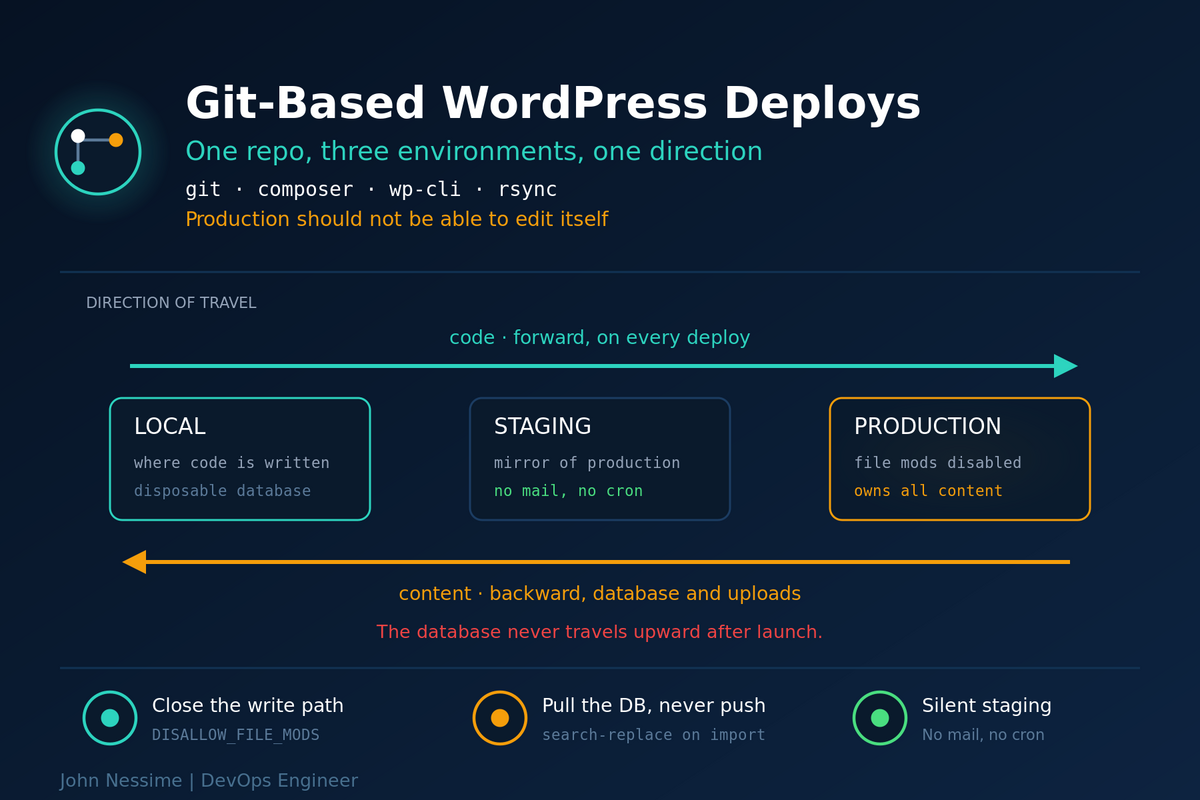
The two halves travel in opposite directions. Code moves forward, local to staging to production. Content moves backward, production to staging to local. Once a site is live, production is the only authoritative source of orders, comments and posts, and pushing a database upward destroys everything written since your last pull.
Write that rule somewhere the whole team can see it. Almost every catastrophic WordPress deployment story is somebody pushing a database in the wrong direction.
Decide what actually goes in the repo
Three approaches, in increasing order of discipline and payoff. Pick one deliberately rather than drifting into the first.
- Theme only. The repo contains one custom theme, sometimes a custom plugin. Everything else is installed through wp-admin. Easy to start, and it means you have no reproducible build: rebuilding the site from the repo is impossible.
- All of wp-content, minus uploads. Themes, plugins and mu-plugins in git; core and media excluded. This is the pragmatic middle and where most teams land. You get reproducible plugin versions and a real diff when a plugin changes.
- Composer-managed, Bedrock-style. Core, plugins and themes are all declared as dependencies. The repo holds a
composer.jsonand your own code, nothing else. The lockfile is the source of truth andcomposer installrebuilds the site anywhere.
Option three is the one I reach for on anything with more than one developer, because “which plugin version is production running” becomes a question with an answer. The honest cost: premium plugins that are not on a Composer repository need either a private repository or a manual step, and that friction is real. If most of your plugin stack is commercial, option two is a reasonable place to stop.
One thing to check if you are following an older tutorial. The Composer repository landscape for WordPress plugins shifted recently: WPackagist was acquired by WP Engine, and the Roots team launched WP Packages as an independent alternative with different package naming. Both work. Any guide written before that change will use the older wpackagist-plugin/ prefix, so make sure the repository URL and the prefixes in your composer.json match each other.
The gitignore that matters
# Secrets and machine-specific config. Never committed.
wp-config.php
.env

# Content, not code. This gets pulled down from production,
# it never gets deployed up.
wp-content/uploads/

# Generated at runtime or by the build.
wp-content/cache/
wp-content/upgrade/
wp-content/debug.log
node_modules/
vendor/
Ignoring vendor/ assumes your deploy runs composer install. If your pipeline just rsyncs the repo with no build step, commit it instead, or you will ship a site with no dependencies. Decide which, then be consistent, because half-and-half is how you end up with a missing autoloader at two in the morning.
Close the second write path
This is the step people skip, and it is the one that makes everything else work. If production can still install and update plugins from the browser, your repo is not the source of truth. It is a suggestion.
// wp-config.php on production and staging.

// Removes the ability to install, update or delete plugins and
// themes from the admin. Also disables the built-in file editor,
// so DISALLOW_FILE_EDIT is implied by this one.
define( 'DISALLOW_FILE_MODS', true );

// Stops core from updating itself behind your back, including
// the automatic minor updates that would otherwise change files
// your deploy is about to overwrite.
define( 'AUTOMATIC_UPDATER_DISABLED', true );
Be clear-eyed about the trade-off, because it is a real one. You have just taken away automatic security updates. That is only an improvement if you replace them with something: a scheduled dependency update job, a weekly review of the update list, a bot that opens a pull request when a plugin version changes. If you disable updates and then do nothing, you have made the site less safe, not more controlled.
The update flow now runs through the repo. On your local machine:
# Composer-managed: bump the lockfile, commit it, deploy.
composer update wp-plugin/some-plugin

# wp-content-in-git: let WP-CLI do the download locally,
# then commit the resulting file changes as a normal diff.
wp plugin update some-plugin
The second form is worth appreciating. A plugin update becomes a reviewable diff. When something breaks two days later, git log tells you exactly which files changed and git revert puts them back.
Configuration per environment
Database credentials, salts and API keys differ per environment and none of them belong in git. Keep wp-config.php out of the repo and place it on each server, or use an environment file with a committed .env.example showing the required keys with no values.
Core has a first-class way to tell environments apart, and it is underused:
// Per environment, in wp-config.php.
// Recognised values: 'local', 'development', 'staging', 'production'.
define( 'WP_ENVIRONMENT_TYPE', 'staging' );
<?php
// mu-plugin, committed to the repo, safe on every environment
// because it checks where it is running.
if ( wp_get_environment_type() !== 'production' ) {
// Keep non-production sites out of search results.
add_filter( 'pre_option_blog_public', '__return_zero' );
// Short-circuit wp_mail() entirely. Returning a non-null
// value stops WordPress before it hands anything to PHPMailer.
add_filter( 'pre_wp_mail', '__return_false' );
}That mail filter is the single most valuable line in this post. Restore a production database onto staging, forget this, and the first cron run mails real order confirmations, password resets and abandoned-cart nudges to real customers from a URL that does not work. It is silent until it is very loud.
Moving the database in the allowed direction
Set up WP-CLI aliases once and the rest becomes short commands instead of a runbook nobody follows.
# wp-cli.yml in the project root, committed to the repo.
@staging:
  ssh: deploy@staging.example.com/var/www/staging.example.com
@production:
  ssh: deploy@example.com/var/www/example.com
Now pulling production down to your machine is one pipe. The trailing hyphen means “write the dump to standard output”, and the leading hyphen on the import means “read it from standard input”, so nothing touches disk:
# Back up your local database first, then overwrite it.
wp db export local-backup.sql
wp @production db export - | wp db import -
The URLs inside that dump still point at production, and they are buried in serialized PHP arrays where a plain SQL find-and-replace corrupts the string length prefixes. This is exactly what wp search-replace exists for: it unserializes, replaces, and reserializes properly.
# Always dry-run first and actually read the table list it prints.
wp search-replace 'https://example.com' 'https://example.test'
  --all-tables-with-prefix --skip-columns=guid --dry-run

# Then for real.
wp search-replace 'https://example.com' 'https://example.test'
  --all-tables-with-prefix --skip-columns=guid

wp cache flush
Two flags worth understanding rather than copying:
--skip-columns=guidbecause theguidcolumn is a permanent identifier that feed readers and external systems use to decide whether they have already seen a post. Rewriting it makes subscribers re-receive your entire archive, and you find out from an angry email weeks later.--all-tables-with-prefixbecause plugins create their own tables using your prefix, and those tables are not registered with WordPress. Without this, the replacement misses them and you get half-migrated URLs in places nobody checks.
Uploads are the other half of the content problem. Do not put them in git; a media library will outgrow a repository quickly and every clone pays for it. Sync them separately with rsync when you need them, or skip them entirely locally and let a plugin proxy missing images from production. Offloading media to object storage sidesteps the question completely and is worth considering on any site with a large library.
The deploy itself
Three broad options. git pull on the server is the simplest and the one I would move away from first: it puts a .git directory next to your document root, it has no build step, and a failed pull leaves the site half-updated. Rsync from CI is the pragmatic default. Atomic releases with a symlink swap, the way Deployer or Capistrano work, are the most correct because the site switches versions instantly and rollback is a symlink change.
A workable rsync deploy from GitHub Actions, with staging on merge and production on tag:
name: Deploy
on:
  push:
    branches: [main]     # goes to staging
    tags: ['v*']         # goes to production

jobs:
  deploy:
    runs-on: ubuntu-latest
    timeout-minutes: 15
    steps:
      - uses: actions/checkout@v4    # pin to a full SHA in production

      - name: Build
        run: |
          composer install --no-dev --optimize-autoloader
          npm ci
          npm run build

      - name: Sync files
        run: |
          echo "$DEPLOY_KEY" > deploy_key
          chmod 600 deploy_key
          rsync -az --delete
            -e "ssh -i deploy_key -o StrictHostKeyChecking=accept-new"
            --exclude-from=.deployignore
            ./ "$TARGET"
        env:
          DEPLOY_KEY: ${{ secrets.DEPLOY_KEY }}
          TARGET: ${{ secrets.DEPLOY_TARGET }}
--delete is what makes the target match the source exactly, which is the entire point of a deploy. It is also the flag that will erase your uploads directory if .deployignore is wrong. Test the exclude list against staging before you ever point this at production, and use --dry-run the first time.
Files landing on the server is not the same as a working deploy. Run a post-deploy step over SSH:
#!/usr/bin/env bash
set -euo pipefail

cd /var/www/example.com

# Applies schema changes that a core or plugin version bump needs.
# Safe to run when there is nothing to do.
wp core update-db

# Rewrite rules live in the database, so a plugin that registers
# new routes needs this or you get 404s on the new URLs.
wp rewrite flush

# Options and transients are cached; stale ones survive a file deploy.
wp cache flush

# Prove the site answers before you call the deploy finished.
# --fail makes curl exit non-zero on a 5xx instead of shrugging.
curl --fail --silent --show-error https://example.com/ > /dev/null
If you run PHP-FPM with OPcache, add a reset to that script. Otherwise PHP happily serves the previous version of your code from its compiled cache and you spend twenty minutes convinced the deploy did not run.
Making staging safe to hold real data
Staging is only useful if it mirrors production, and the moment it does it becomes dangerous. Every one of these has bitten somebody:
- Outbound email. Covered above. Kill it at the
wp_mail()level rather than trusting a plugin setting somebody can toggle. - Cron. A restored production database brings production’s scheduled jobs with it. Set
DISABLE_WP_CRONon staging and do not add a system cron job unless you specifically need to test scheduling. - Payment gateways. The database carries live API keys. Overwrite them with test-mode credentials as part of your restore script, not by hand afterwards.
- Search indexing. Filter
blog_publicas shown, and put HTTP basic auth in front of the whole environment. Duplicate content ranking above your real site is an avoidable embarrassment. - Personal data. A production restore is real customer data on a server that probably has weaker access controls. Either anonymise user records during the restore or treat staging with the same seriousness as production.
Write the restore as a single script that does all of this in order, so nobody has to remember step four. If it is a checklist in a wiki, it will be skipped.
Troubleshooting
The deploy ran but the site is unchanged
In order: OPcache serving compiled bytecode, a page cache or CDN holding the old response, or rsync excluding the directory you edited. Check them in that order. Confirm the file on disk actually changed before blaming anything upstream of it.
White screen immediately after deploying
Usually a missing autoloader, meaning vendor/ was neither committed nor built. Check the PHP error log rather than guessing. A memory limit lower on the server than locally is the other common cause, and it produces the same blank page.
Site works, admin redirects in a loop
siteurl and home in the options table disagree with the URL you are actually using. Almost always a search-replace that missed. Check with wp option get siteurl and wp option get home, and set them explicitly with wp option update rather than running the replacement again.
Serialized data broken after a migration
Somebody ran sed or a SQL REPLACE on the dump. The length prefix inside each serialized string no longer matches the string, so PHP silently fails to unserialize and widgets, theme options and ACF fields come back empty. Restore from the dump and redo it with wp search-replace. There is no partial recovery worth attempting.
Permalinks return 404 after deploy
Rewrite rules are stored in the database and did not get regenerated. Run wp rewrite flush. If it recurs on every deploy, add it to the post-deploy script permanently.
Plugin reverts to an older version after every deploy
Somebody is still updating in wp-admin. That is not a pipeline bug, it is the second write path being open. Set DISALLOW_FILE_MODS and give the team a documented way to request an update.
Common mistakes
- Committing
wp-config.php, and with it your database password and salts. - Putting
wp-content/uploadsin the repo, then wondering why clones take ten minutes. - Pushing a staging database over production because “the content is the same”. It never is.
- Using
sedor SQL to swap URLs instead ofwp search-replace. - Replacing the
guidcolumn, and re-sending your archive to every RSS subscriber. - Running
rsync --deleteagainst production without testing the exclude list. - Leaving updates enabled in wp-admin, so the repo and the server drift apart silently.
- Disabling automatic updates without putting a review process in its place.
- Restoring production data onto staging with mail still enabled.
- Forgetting
DISABLE_WP_CRONon staging, so scheduled jobs fire twice across two environments. - Treating “the files copied” as proof the deploy worked, with no smoke test.
Best practices
- Make the repo the only way code reaches a server, and enforce it with
DISALLOW_FILE_MODS. - Keep code moving forward and content moving backward, and state that rule where the team can see it.
- Deploy staging from a branch and production from a tag, so production releases are deliberate.
- Dry-run every search-replace and every rsync the first time.
- Back up the target database immediately before any deploy that touches it.
- Script the staging restore end to end, including mail, cron, keys and anonymisation.
- Finish every deploy with a real HTTP request through the public URL, not a file listing.
- Use environment-aware code with
wp_get_environment_type()instead of commented-out blocks. - Keep uploads out of git and sync or offload them separately.
- Replace automatic updates with a scheduled dependency review, and put it in a calendar.
FAQ
Should WordPress core be in the repository?
Only if you are not managing it another way. Committing core works and makes the repo self-contained, at the cost of noisy diffs on every update. Declaring core as a Composer dependency is cleaner and gives you a pinned version without the noise. What you should not do is leave core unmanaged, so nobody can say which version production runs.
How do I handle the database in a Git workflow?
You do not put it in Git. Git handles code; the database is handled by scripted pulls in one direction. Production to staging to local, with a search-replace on import. The only time a database legitimately goes upward is the initial launch, before there is real content to lose.
What about plugin settings changed in staging?
This is the genuinely hard part and there is no clean answer. Settings live in the database, so they do not deploy. Options are: reapply them by hand in production with a documented checklist, script them as WP-CLI commands in a deploy step, or use a plugin that exports configuration to files. Whichever you pick, write it down, because “I’ll remember” is how a setting gets applied to staging and never production.
Is Bedrock necessary?
No. It is a well-made set of defaults for Composer-managed WordPress with environment-based configuration, and it saves assembling those pieces yourself. Plenty of teams run a perfectly disciplined Git deployment with a standard directory layout. Adopt it if you want the conventions; do not adopt it as a prerequisite.
Do I need three environments?
You need local and production. Staging earns its cost when you have multiple people, a client who signs off on changes, or a site where breakage costs money. On a personal blog it is overhead. On a store, skipping it means production is your test environment.
Can I do this on shared hosting?
Partly. You need SSH and ideally WP-CLI, and plenty of shared plans have neither. Some managed WordPress hosts offer a git push deployment target, which handles the file half for you. If you want the full workflow with your own build steps and post-deploy hooks, a small VPS from a provider like InterServer gives you the SSH access and cron control the workflow assumes.
How do I roll back a bad deploy?
Files are easy: redeploy the previous tag, or swap the symlink back if you use atomic releases. The database is the hard part, which is why you take a dump immediately before any deploy that runs a migration. Rolling files back without rolling the database back can leave you worse off than the broken version, so know which of the two actually changed before you act.
The one thing to remember
Git-based WordPress deployment is not really a pipeline problem. The pipeline is the easy part, and you can build a working one in an afternoon. The hard part is making the repo the only way code reaches a server, and then keeping the database flowing in exactly one direction.
Get those two right and everything else is detail. Get them wrong and you will keep having the same confusing morning, staring at a plugin version that nobody remembers changing.
Want this set up properly on your site?
Retrofitting version control onto a live WordPress site is fiddly work, mostly because you have to do it without downtime and without losing whatever has been changed directly on the server. Things I take on:
- Moving an existing production site into Git without downtime, including reconciling whatever has drifted on the server.
- Converting a site to Composer-managed plugins and core, with a working lockfile and a sane update process.
- Building local, staging and production environments that actually match, with per-environment configuration.
- Deploy pipelines in GitHub Actions or GitLab CI: build, rsync or atomic releases, post-deploy WP-CLI steps, smoke test, rollback path.
- Scripted database refreshes from production to staging with mail, cron, API keys and personal data handled automatically.
- Server setup for the workflow: SSH deploy users, correct file ownership, OPcache resets, cron.
Tell me how your site is hosted and how plugins currently get updated, and I will tell you what the first step should be.