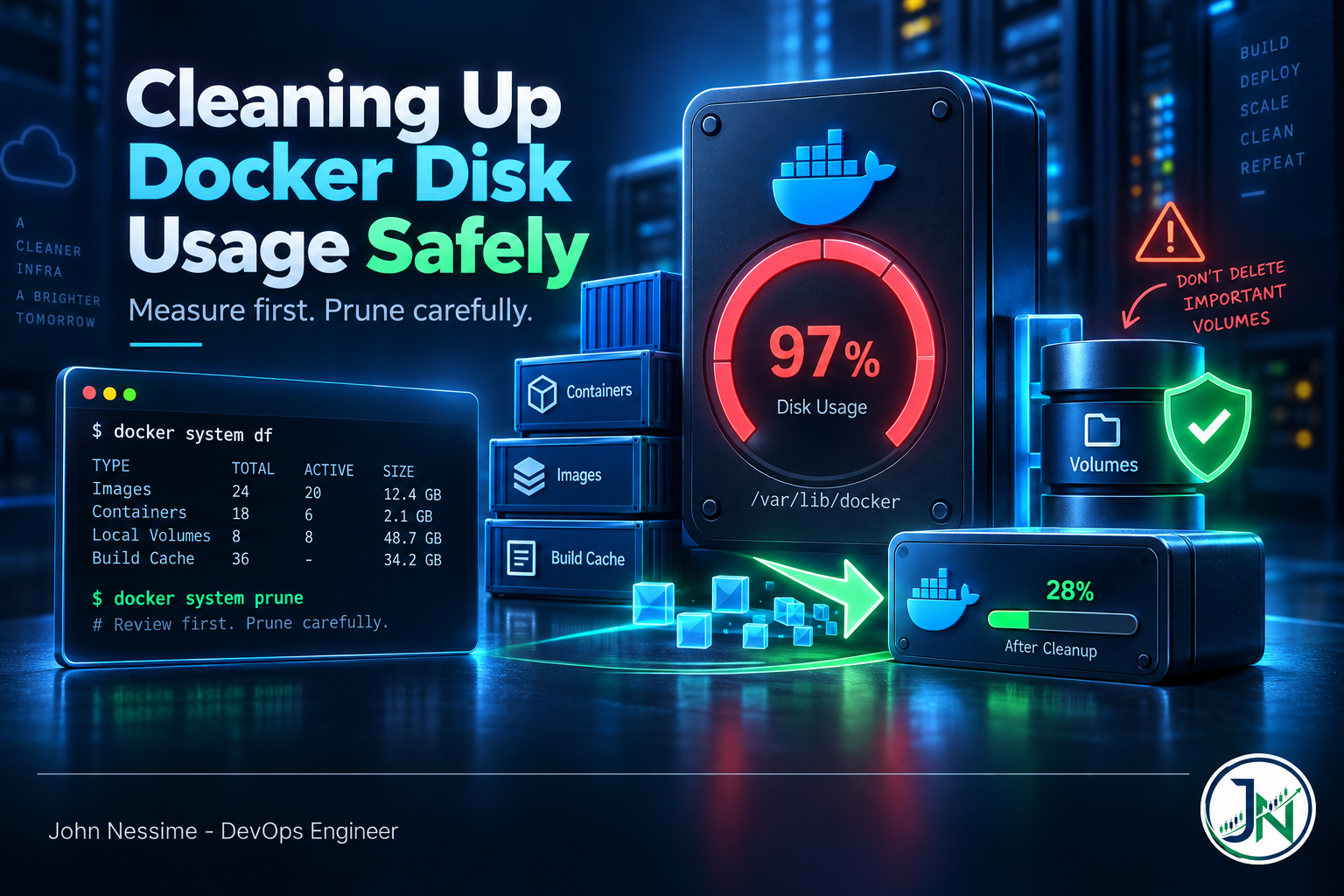
The alert says the root partition is at 97%. You SSH in, run df -h, and /var/lib/docker is sitting on forty-something gigabytes. The first search result tells you to run docker system prune -a --volumes, and it will absolutely free the space. It will also delete the volume holding your Postgres data.
Docker disk usage grows quietly because every part of it accumulates independently — images, stopped containers, volumes, build cache, and container logs, which are the one nobody expects and which no Docker command reports on. Cleaning it up is easy. Cleaning it up without destroying something takes about five more minutes.
This is the order I work through it: measure first, reclaim from safest to most destructive, then fix the thing that caused the growth so you are not back here next month.
Measure before you delete
Every cleanup starts here, and skipping it is how people delete the wrong thing:
docker system dfThat gives you four rows — Images, Containers, Local Volumes, Build Cache — with a total size and a reclaimable figure for each. The reclaimable column is the one that matters. If build cache is eleven gigabytes and all of it is reclaimable, you have found your win and you never need to go near volumes.
For the itemised version:
docker system df -vNow you can see individual images with their sizes, which containers are using what, and which volumes have no container attached. Read this before running anything destructive.
Two more views worth having open:
# What is actually running, and what is just sitting there stopped
docker ps -a --format 'table {{.Names}}t{{.Image}}t{{.Status}}t{{.Size}}'

# Images by age, oldest first
docker images --format 'table {{.Repository}}:{{.Tag}}t{{.Size}}t{{.CreatedSince}}'
Reclaim in order, safest first
These are ordered deliberately. Work down the list and stop as soon as you have enough space. Most of the time you never reach step four.
1. Stopped containers
# See what would go
docker ps -a --filter status=exited --filter status=created

docker container prune
This removes stopped containers and their writable layers. Anything running is untouched, and named volumes attached to those containers survive — only the container’s own layer goes.
The one caveat: if a stopped container held state in its writable layer rather than in a volume, that state is gone. That is a design problem rather than a cleanup problem, but it is worth a glance before you confirm.
2. Build cache
On any machine that builds images regularly, this is usually the biggest single win and it is completely safe. Build cache is derived data. Deleting it costs you a slower next build and nothing else.
# Everything older than a week
docker builder prune --filter "until=168h"

# Everything, no exceptions
docker builder prune -a
3. Dangling images
# Look first
docker images -f dangling=true

docker image prune
Without -a, this removes only dangling images — untagged layers left behind when a rebuild moved a tag to a new image. They are almost always genuine garbage.
4. Unused images — read this one carefully
docker image prune -aAdding -a changes the meaning completely. It removes every image that does not have at least one container associated with it — running or stopped. So an image you pulled for a job that runs weekly, with no container currently existing, is gone. It will pull again, which is fine if you have bandwidth and the registry is reachable, and much less fine at 3am on a machine with a slow link.
Safer in most cases is an age filter, which keeps anything recent:
docker image prune -a --filter "until=336h" # older than 14 days5. Volumes — the one that loses data
Volumes are where databases live. Treat this step as a data operation, not a cleanup.
Before removing anything, look inside the candidates. This mounts each dangling volume read-only into a throwaway container so you can see what is actually in it:
docker volume ls -qf dangling=true | while read -r v; do
  echo "=== $v"
  docker run --rm -v "$v":/vol:ro alpine sh -c 'du -sh /vol; ls -la /vol' 2>/dev/null | head -12
done
If you see anything resembling a data directory, back it up before it goes:
docker run --rm
  -v my-volume:/vol:ro
  -v "$PWD":/backup
  alpine tar czf /backup/my-volume.tar.gz -C /vol .
Only then:
docker volume pruneOn recent Docker versions this prunes only anonymous volumes by default, with --all needed to include named ones — a genuinely good safety change. Older versions removed named volumes too. Check which behaviour you have before trusting it:
docker version --format '{{.Server.Version}}'
docker volume prune --help
The gigabytes Docker never tells you about
Here is the part that catches experienced people. Container logs do not appear in docker system df at all, and no prune command touches them. A chatty application with the default logging driver will happily write tens of gigabytes and nothing in Docker’s own tooling will mention it.
sudo du -sh /var/lib/docker/containers/*/*-json.log | sort -h | tail -10To map a log file back to the container that owns it:
docker ps -aq | xargs docker inspect --format '{{.Name}} {{.LogPath}}'Truncate, do not delete
This matters. Deleting a log file that a running container still has open removes the directory entry but not the data — the kernel keeps the blocks allocated until the process closes the descriptor, so df shows no improvement and you are left confused. Truncate instead:
sudo truncate -s 0 /var/lib/docker/containers/<container-id>/<container-id>-json.logThen stop it happening again
Set a global default in /etc/docker/daemon.json:
{
  "log-driver": "json-file",
  "log-opts": {
    "max-size": "10m",
    "max-file": "3"
  }
}
sudo systemctl restart dockerOne thing people get wrong here: this applies to newly created containers only. Anything already running keeps the logging config it was created with. You have to recreate those containers for the limit to take effect — restarting them is not enough.
While you are in that file, cap the build cache too:
{
  "log-driver": "json-file",
  "log-opts": {
    "max-size": "10m",
    "max-file": "3"
  },
  "builder": {
    "gc": {
      "enabled": true,
      "defaultKeepStorage": "20GB"
    }
  }
}
Automating it without automating a disaster
A weekly cron is worth having, provided it only ever does the safe operations. The rule is simple: never put --volumes in anything unattended.
# /etc/cron.d/docker-prune
# Weekly, Sunday 03:00. Containers, networks, dangling images and build
# cache older than seven days. No volumes, ever.
0 3 * * 0 root /usr/bin/docker system prune -f --filter "until=168h" >> /var/log/docker-prune.log 2>&1
Note what docker system prune covers without flags: stopped containers, unused networks, dangling images and build cache. It does not touch volumes unless you explicitly pass --volumes, and it does not remove tagged images unless you pass -a. Those two flags are the whole difference between a routine job and an incident.
If you are tempted to add
--volumesto a cron job so you do not have to think about it again, you have swapped a disk space problem for a data loss problem on a timer.
Troubleshooting
Pruned everything, df has not moved
Deleted files still held open by a running process. Find them:
sudo lsof +L1 | head -20Restarting the process that holds the descriptor releases the blocks. If it is the Docker daemon itself, a systemctl restart docker does it, at the cost of bouncing every container without a restart policy.
“No space left on device” but df shows free space
You are out of inodes rather than bytes. Docker’s layered storage creates enormous numbers of small files:
df -iThe fix is the same — prune images and build cache, which is where the file count lives.
overlay2 is huge and I have hardly any images
sudo du -sh /var/lib/docker/*
sudo du -sh /var/lib/docker/overlay2 2>/dev/null
Usually build cache or container writable layers rather than images. Do not delete anything under overlay2 by hand — the directory names are referenced in Docker’s metadata, and removing them directly corrupts the daemon’s view of the world. Always go through docker commands.
Running low and need space right now
Fastest safe sequence, in order:
docker builder prune -a -f
docker container prune -f
docker image prune -f
sudo truncate -s 0 /var/lib/docker/containers/*/*-json.log
Four commands, no volumes touched, no tagged images removed. That resolves the large majority of Docker disk usage emergencies.
Common mistakes
- Reaching for
docker system prune -a --volumesfirst because it is the top search result. - Putting
--volumesin a cron job. - Deleting log files instead of truncating them, then wondering why
dfdid not change. - Setting log limits in
daemon.jsonand assuming existing containers pick them up. They do not. - Removing directories under
/var/lib/docker/overlay2by hand. - Storing application data in a container’s writable layer rather than a volume, so cleanup destroys it.
- Never running
docker system df, and so deleting the wrong category entirely. - Assuming inodes cannot be the problem.
Best practices
- Set log rotation in
daemon.jsonon every host, on day one. - Cap build cache with the builder GC settings rather than relying on manual pruning.
- Use named volumes for anything you care about, so cleanup and data are clearly separated.
- Use multi-stage builds and a real
.dockerignore. Smaller images mean less to clean up. - Automate only the safe operations, with an age filter, and log what the job removed.
- Alert on disk usage at 80% so cleanup is a scheduled task rather than an incident.
- On busy build hosts, give
/var/lib/dockerits own partition so a runaway cache cannot take the OS down with it.
Frequently asked questions
Is docker system prune safe to run?
Without flags, yes, on most systems. It removes stopped containers, unused networks, dangling images and build cache. Adding -a also removes tagged images with no container attached. Adding --volumes is the one that can lose data.
Will pruning delete my database?
Only if the database lives in a volume and you pass --volumes, or it lives in a container’s writable layer and you prune that container. If it is in a named volume attached to a running container, ordinary pruning will not touch it.
Why does docker system df not match du?
Two reasons. It does not count container logs at all, and it accounts for shared image layers once rather than per image. du -sh /var/lib/docker is the honest total.
How do I stop logs growing without limit?
Set max-size and max-file under log-opts in /etc/docker/daemon.json, restart the daemon, then recreate existing containers so they pick up the new configuration.
Can I move Docker’s storage to another disk?
Yes, with data-root in daemon.json. Stop Docker, copy /var/lib/docker across preserving ownership and extended attributes, point data-root at the new location, then start it again. Copy rather than move until you have confirmed it works.
Does pruning affect running containers?
No. Prune operations skip anything in use. The risk is always to things that are stopped, dangling or unattached — which is exactly why checking what is stopped before you prune is worth the thirty seconds.
Wrapping up
Docker disk usage is four categories that grow independently, plus a fifth — logs — that hides from Docker’s own accounting. Run docker system df, work down from build cache to volumes, and stop as soon as you have the space. The nuclear option exists, but reaching for it first is how people discover which of their volumes mattered.
Once the immediate problem is solved, spend ten minutes on log rotation and builder GC. Those two settings turn this from a recurring emergency into something you never think about again.
Need a hand with Docker in production?
I work with teams on container infrastructure — image sizes that got out of hand, build pipelines that cache badly, storage and logging defaults that were never set, and monitoring that catches a full disk before the alert does.
If you would rather not spend the evening on it, you can hire me on Upwork.