The ticket usually arrives from the wrong direction. Nobody reports “the scheduler is broken.” Somebody asks for a restore, and the newest dump in the backup directory is three weeks old.
The crontab entry is still there. The script still works when you run it by hand. Nothing in the monitoring went red, because nothing was watching whether the job ran at all. It was watching whether the server was up.
That is the real question behind cron vs systemd timers, and it has almost nothing to do with syntax. Both tools can run a command at 2 a.m. The difference is what happens on the night the command doesn’t run, and how long it takes anyone to find out.
This post compares the two by failure family rather than by feature list: missed runs, overlapping runs, environment surprises, output that goes nowhere, and jobs that eat the machine. Then a decision procedure, the same job written both ways, and how to debug each one when it goes quiet.
The failure that actually decides it
Scheduled jobs fail silently far more often than they fail loudly. A job that crashes with a stack trace gets fixed the same week. A job that stopped firing six weeks ago gets found during an incident.
Cron’s default answer to “what happened?” is to mail the job’s output to the owning user. On a server with no local mail transfer agent configured, which is most servers built in the last decade, that output is generated and then discarded. The daemon logs that it started the command. It does not log what the command printed, and in most implementations it does not log the exit status either.
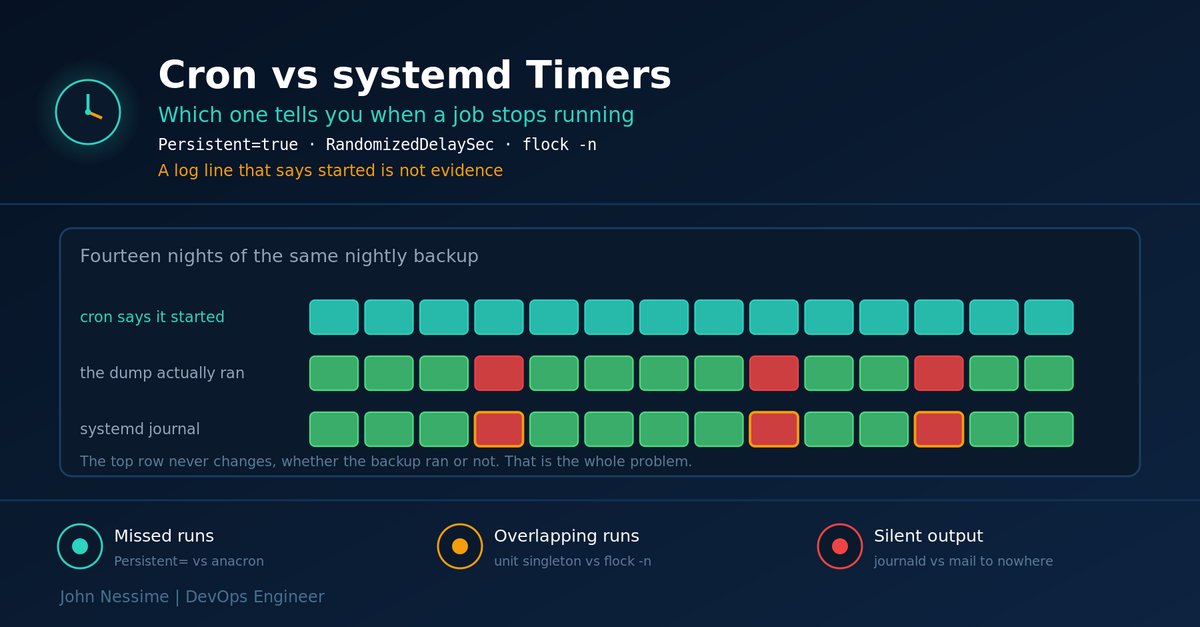
So you get a log line saying cron ran your backup, every night, forever, including on the nights the backup wrote nothing. That line is the trap. It looks like evidence.
systemd timers hand this to journald instead. Standard output and standard error from the triggered service land in the journal, tagged with the unit name, alongside the exit status and the runtime. That is the single biggest practical difference between the two, and it is the reason most of my new scheduled work goes into timers.
Neither one alerts you. Both will happily not run for a month while you sleep well. Observability is not monitoring, and I’ll come back to that.
Where cron still wins
Cron is one line in one file. There is no unit to reload, no second file to keep in sync, no install section to get wrong. crontab -e, five fields, a command, done. For a job that trims a log directory on a box you own, that economy is not nothing.
It also runs where systemd does not. BSD hosts, Alpine images, containers, appliance firmware, embedded boxes, older enterprise systems still on a legacy init. If your configuration management has to cover a fleet that is not uniformly systemd, cron is the common denominator and it is not close.
Per-user scheduling is genuinely simpler too. A user runs crontab -e and owns their own jobs, with no root involvement and no unit files in /etc. On shared hosting and on control panels like DirectAdmin or cPanel, this is the only model available, and the panel writes the crontab for you.
Where cron loses
- No dependency ordering. Cron cannot wait for the network to be up or the database to be ready. It fires at the wall clock time and hopes.
- No overlap protection. If the 2 a.m. run is still going at 3 a.m., the 3 a.m. run starts anyway, on top of it.
- No resource containment. A runaway job competes with production for CPU, memory and disk with nothing standing between them.
- Minute resolution, and no catch-up if the machine was off.
- A syntax with sharp edges that fail quietly, which is the next section.
Where systemd timers win
A timer separates when from what. The .timer unit holds the schedule. The .service unit holds the job. That split feels like bureaucracy until the first time you need to run the job right now, out of band, without touching the schedule. Then it is just systemctl start myjob.service, and the run is logged exactly like a scheduled one.
Everything systemd knows how to do to a service, it will do to a scheduled job. Ordering after other units. Restart-on-failure. Runtime caps. Memory and CPU limits through cgroups. A dedicated user. A private /tmp. A failure handler unit that fires when the job exits non-zero.
You also get a schedule you can interrogate before it bites you. systemctl list-timers prints every timer on the box with its next and last elapse. systemd-analyze calendar takes an expression and tells you exactly when it would fire, which is the closest thing either scheduler has to a unit test.
Where systemd timers lose
- Two files, a
daemon-reloadand anenablefor every job. That is real friction when you have forty small jobs. - The calendar syntax is more expressive than cron’s and harder to eyeball. You will reach for
systemd-analyze calendarmore often than you expect. - Portability is gone. These units run on systemd hosts and nowhere else.
- User timers need lingering enabled, or they stop when the user logs out and never start at boot. This surprises people once, memorably.
- The journal is not a log file. If your log shipping only tails
/var/log, timer output is invisible to it until you point the shipper at journald.
Cron vs systemd timers, by failure family
The machine was off at 2 a.m.
Cron has no memory. If the box was down, rebooting, or suspended when the schedule came round, that run is gone. Nothing catches it up and nothing records that it was skipped.
The traditional fix is anacron, which tracks the last successful run per job in a timestamp file and runs the job shortly after boot if the interval has lapsed. It is why the scripts in /etc/cron.daily still run on a laptop that is closed every night. The catch is that anacron works in whole days and only covers the cron.daily, cron.weekly and cron.monthly directories by default. It does not help your custom job at 02:00.
systemd folds that behaviour into a single directive:
[Timer]
OnCalendar=*-*-* 02:00:00
Persistent=true
With Persistent=true, systemd writes a timestamp under /var/lib/systemd/timers/ each time the timer fires. On boot it compares that stamp against the schedule, and if a run was missed it triggers immediately. This matters more than it sounds on any VPS you reboot for kernel updates, and a great deal on hosts at providers like Contabo or InterServer where you take maintenance windows on their timetable rather than yours.
One caveat worth knowing: “immediately” means immediately. If you have twelve persistent timers and the box has been off for a week, all twelve fire within seconds of boot, on a machine that is still starting services. Pair Persistent=true with RandomizedDelaySec= so the catch-up is spread out.
Two copies of the same job
This is the one that corrupts data. A sync job normally takes four minutes and runs every five. One night the remote end is slow, the run takes eleven minutes, and cron starts two more copies while the first is still writing.
Cron will not stop this. You have to do it yourself, and the standard tool is flock from util-linux:
*/5 * * * * /usr/bin/flock -n /var/lock/sync.lock /usr/local/bin/sync.sh-n means fail immediately rather than queue behind the running copy. Without it you build a backlog of processes all waiting for the same lock, which turns an overlap problem into a fork bomb with a slow fuse.
systemd gets this for free from its own model. A unit is either active or it isn’t. If sync.service is still running when the timer elapses, there is no second copy to start, because starting an already-active unit is a no-op. You do not have to remember anything.
One default is worth knowing. A calendar timer schedules its next elapse from the previous trigger time, so if a run overran, that next elapse is already in the past and the service fires again the moment it finishes. Newer systemd releases add a DeferReactivation= boolean that schedules from when the service went inactive instead, so an overrunning job waits for the next real slot. Check your distribution’s systemd version before relying on it.
The environment your job actually gets
“It works when I run it manually” is the single most common scheduled-job bug, and both schedulers cause it, for the same reason: neither one gives your job an interactive login shell.
Cron runs the command with a short, hardcoded environment. Your shell profile is not sourced. Your PATH is much shorter than the one you tested with, which is why a script that calls docker, wp, aws or a version-manager shim works from your terminal and fails from cron. The working directory is the user’s home, not wherever you happened to be standing.
Cron adds one hazard that is entirely its own. Inside a crontab, the percent sign is a metacharacter: it becomes a newline, and everything after the first one is fed to the command as standard input. So this looks fine and is broken:
# Truncated at the first %. The redirect never happens.
0 2 * * * /usr/bin/mysqldump app > /backups/app-$(date +%F).sql

# Escaped. This is what you meant.
0 2 * * * /usr/bin/mysqldump app > /backups/app-$(date +%F).sql
There is no warning. The line parses, cron runs the truncated fragment, and the log says the job started. Anything with a date + format string in a crontab deserves a second look.
systemd services get a minimal environment too, so the class of bug is identical. What differs is that the fix is declarative and lives with the unit rather than being hidden inside a wrapper script:
[Service]
Type=oneshot
User=deploy
WorkingDirectory=/srv/app
Environment=PATH=/usr/local/bin:/usr/bin:/bin
EnvironmentFile=/etc/myapp/backup.env
ExecStart=/usr/local/bin/backup.sh
The honest summary: absolute paths for every binary solve most of this on either scheduler. The rest is solved by never putting logic in the schedule. Put it in a script and schedule the script.
Everything firing at once
Write 0 0 * * * on fifty hosts and fifty hosts hit your backup target, your package mirror or your API at exactly midnight. The classic cron answer is to hash the hostname into a minute offset in configuration management, which works and which every team reinvents.
systemd has two directives here and they pull in opposite directions, which is the part people get wrong:
RandomizedDelaySec=spreads timers apart. It adds a delay between zero and the value you set, so identical schedules on many hosts land at different moments.AccuracySec=pulls timers together. It lets systemd shift the firing time within a window to coalesce wakeups and save power. It defaults to one minute, which is why a timer set to 02:00:00 often fires a few seconds late.
If you want a timer to fire close to the stated second, lower AccuracySec=. If you want to stagger a fleet, raise RandomizedDelaySec=. Setting only AccuracySec= to a large value and expecting it to spread load is the mistake, because coalescing is the opposite of spreading.
A job that eats the box
Cron has no answer here beyond nice and ionice in front of the command, and a script that hangs forever will hang forever. A systemd service is a cgroup, so the limits are declarative and enforced:
[Service]
Type=oneshot
MemoryMax=512M
CPUQuota=40%
IOWeight=20
TimeoutStartSec=30min
OnFailure=notify-failure@%n.service
ExecStart=/usr/local/bin/reindex.sh
The two directives that earn their keep on a shared box are TimeoutStartSec=, which kills a oneshot job that has hung, and OnFailure=, which starts another unit when this one exits non-zero. That second one is how you get a scheduled job to page you without wiring an alerting call into every script.
The same job written both ways
A nightly database dump that must not overlap, must not run before the database is up, and must catch up if the host was rebooted. In cron:
0 2 * * * /usr/bin/flock -n /var/lock/db-backup.lock /usr/local/bin/db-backup.sh >> /var/log/db-backup.log 2>&1That handles overlap and captures output. It does not handle “the database wasn’t ready” or “the host was down”, and the log file is now your problem to rotate.
The systemd version is two files. First the service, which is the job:
# /etc/systemd/system/db-backup.service
[Unit]
Description=Nightly application database dump
After=network-online.target mariadb.service
Wants=network-online.target

[Service]
Type=oneshot
User=backup
ExecStart=/usr/local/bin/db-backup.sh
TimeoutStartSec=45min
Then the timer, which is only the schedule:
# /etc/systemd/system/db-backup.timer
[Unit]
Description=Run the nightly database dump

[Timer]
OnCalendar=*-*-* 02:00:00
Persistent=true
RandomizedDelaySec=15min

[Install]
WantedBy=timers.target
Because the two units share a base name, you do not need a Unit= line. systemd pairs db-backup.timer with db-backup.service by convention. Add Unit= only when the names differ.
Then the part people skip, which is verifying it before walking away:
# Check the units parse before you enable anything
systemd-analyze verify /etc/systemd/system/db-backup.*

# Confirm the calendar expression means what you think
systemd-analyze calendar --iterations=5 "*-*-* 02:00:00"

systemctl daemon-reload
systemctl enable --now db-backup.timer

# Next and last elapse for this timer
systemctl list-timers db-backup.timer

# Run it now, out of band, without touching the schedule
systemctl start db-backup.service
journalctl -u db-backup.service -n 50 --no-pager
Note that you enable the timer, not the service. Enabling the service instead would try to run the job at every boot, which is a memorable way to learn the difference.
How I’d decide
Work down this list and stop at the first line that applies. It resolves most cases in under a minute.
- The host might not be systemd, now or later. Use cron. Portability beats every other consideration on this list.
- The job is inside a container. Use neither. Use your orchestrator’s scheduler, or a timer on the host that invokes the container.
- A missed run matters, or the job must not overlap, or it needs to wait for another service. Use a timer. Every one of those is a directive rather than a wrapper script.
- The job is heavy: a dump, a reindex, an import, anything that can pin a core or fill memory. Use a timer, for the cgroup limits and the runtime cap.
- You need to see output after the fact without building a logging path first. Use a timer. The journal is already there.
- You need sub-minute scheduling. Use a timer with a monotonic directive. Cron’s floor is one minute.
- Otherwise, cron is fine, and one line beats two files.
The migration question answers itself from that. Do not convert forty working crontab lines in a weekend. Write new scheduled work as timers, convert the jobs that have actually burned you, and leave the rest. Mixing both on one host is normal and supported. Just never schedule the same job in both places, which is easier to do than it sounds when a configuration management run and a manual edit disagree.
Diagnosing a job that never fired
Cron
Establish what actually happened before you theorise. The daemon logs every job it starts, so the log tells you which of three situations you are in: cron never tried, cron tried and the command failed, or cron never saw the entry at all.
# Is the daemon running at all?
systemctl status crond      # RHEL, AlmaLinux, Rocky
systemctl status cron       # Debian, Ubuntu

# What did it start, and when?
journalctl -u crond --since "24 hours ago"
grep CRON /var/log/syslog | tail -20     # Debian family
tail -50 /var/log/cron                   # RHEL family

# Whose crontab are you actually looking at?
crontab -l -u deploy
ls -l /etc/cron.d/
Then work through the usual suspects, roughly in order of how often they turn out to be the cause:
- Wrong crontab. The job is in root’s crontab and you are reading the deploy user’s, or it’s in
/etc/cron.dwhere there is an extra user field before the command. - PATH, or an unescaped percent sign. Dump what the job really sees with a temporary entry like
* * * * * env > /tmp/cron-env.txt 2>&1, then compare it against your shell. - Permissions. The script is not executable, or the crontab owner cannot read it.
- The schedule is not what you think. When both day-of-month and day-of-week are restricted, cron runs the job when either matches, not both.
0 0 15 * 1fires on the 15th and on every Monday. - The command captured no output, so a real error was mailed into the void. Append
>> /var/log/myjob.log 2>&1and wait for the next run.
systemd
# Is the timer loaded and scheduled? --all shows inactive ones too
systemctl list-timers --all

# Timer state, last trigger, next elapse
systemctl status db-backup.timer

# What the job printed, and how it exited
journalctl -u db-backup.service --since "7 days ago"

# Prove the schedule independently of the unit
systemd-analyze calendar --iterations=3 "Mon..Fri *-*-* 06:30:00"- The timer is not enabled. Creating the files does nothing. It needs
daemon-reloadandenable --now. - You enabled the service instead of the timer. Check with
systemctl is-enabledon both. - A user timer with no lingering. Under
systemctl --user, the manager stops when the session ends unless you runloginctl enable-lingerfor that user. - The calendar expression is valid but wrong. Valid syntax that never matches will not error.
systemd-analyze calendaris how you find out. - The service failed before your script ran. A missing
User=, anExecStartpath that does not exist, aWorkingDirectorythat is not there. The journal names the reason.
Arguments that don’t survive contact
“Cron is deprecated.” It isn’t. It is packaged and supported on every mainstream distribution, and control panels, hosting providers and countless application installers write crontab entries as a matter of course. Nobody is removing it.
“Timers are too complicated for small jobs.” Two files is more typing, not more complexity. The complexity that matters is the wrapper script you write to get locking, logging and a runtime cap out of cron, and how well the next person understands it. Compare like for like.
“The journal means I have logging sorted.” The journal is a ring buffer with a size cap. If nobody set SystemMaxUse= deliberately and nobody ships journal entries anywhere else, your evidence has a retention window you never chose. Check it before you rely on it.
“Switching to timers will stop jobs failing silently.” This is the one I’d push back on hardest. Timers make failures visible. They do not make them noticed. Neither scheduler will ever tell you that a job did not run, because absence is not an event. That needs a dead man’s switch: the job pings a heartbeat endpoint on success, and something external alerts when the ping stops. Healthchecks.io, Cronitor and Better Stack all sell exactly this, and Healthchecks is open source if you would rather self-host it next to your own Grafana. If you already run Prometheus, writing a completion timestamp through the node exporter’s textfile collector and alerting on its age gets you the same property without another vendor.
“Just move everything to timers.” A mass migration of working jobs is a lot of change for no new capability, and every converted job is a chance to fat-finger a path. Convert on cause, not on principle.
Frequently asked questions
Are systemd timers better than cron?
For production jobs on a systemd host, generally yes: logging, dependency ordering, overlap protection, catch-up and resource limits are all built in rather than bolted on. For a one-line job on a box you own, cron’s simplicity is a real advantage and the timer buys you nothing you will use.
Is cron deprecated or being removed?
No. Cron implementations are still packaged and maintained across the major distributions. Some distributions do not install a cron daemon in minimal images by default, which is a packaging decision rather than a deprecation, so check with your package manager before assuming a fresh host has one.
Can cron and systemd timers coexist on the same server?
Yes, and most real servers run both. The cron daemon itself is usually managed as a systemd service. The only rule is that a given job should be scheduled in exactly one place. Double-scheduling is what produces the “why did this run twice” ticket.
How do I see when a systemd timer will next run?
systemctl list-timers shows next and last elapse for all active timers; add --all to include inactive ones. To test an expression without creating a unit, use systemd-analyze calendar "Mon..Fri *-*-* 06:30:00" with --iterations=N for more fire times.
How do I stop a cron job from overlapping itself?
Wrap it in flock -n with a dedicated lock file. The -n flag makes the new run exit straight away instead of queuing. Do not use a PID file you wrote yourself; it will leak a stale lock the first time the job is killed, and then the job stops running forever.
Do systemd timers work inside Docker containers?
Not usefully. A container normally runs a single process without systemd as PID 1, so there is no service manager to own a timer. Schedule from outside the container instead: a host timer that runs the container, or the scheduler your platform provides. Podman is the exception worth knowing, since it can generate systemd units for containers and the host’s systemd drives them.
How do I convert a crontab line to a systemd timer?
Move the command into a Type=oneshot service with an absolute ExecStart, then translate the five cron fields into an OnCalendar= expression of the form DayOfWeek Year-Month-Day Hour:Minute:Second. Verify the expression with systemd-analyze calendar, enable the timer, then remove the crontab line only after you have seen a successful run in the journal.
The one thing worth remembering
Cron vs systemd timers is not a contest between an old tool and a new one. Cron is a scheduler. A systemd timer is a scheduler attached to a supervisor, and the supervisor is what you are actually buying: dependency ordering, overlap protection, catch-up, resource limits, and output that lands somewhere you can read it.
Pick timers when a missed or duplicated run costs you something. Pick cron when it doesn’t. And whichever you pick, add a heartbeat, because the failure that hurts is not the job that crashes. It’s the job that stopped running while everything stayed green.
Need a second pair of eyes on your scheduled jobs?
Scheduling is one of those areas where the problem is rarely the syntax. It’s the job nobody has checked since the person who wrote it left. This is the kind of work I take on:
- Auditing every crontab and timer on a host and telling you which jobs have quietly stopped running
- Converting fragile cron entries to systemd timers with locking, runtime caps and failure handlers, without a big-bang migration
- Fixing the classic “works by hand, fails on schedule” environment and PATH problems, including the percent-sign trap
- Adding heartbeat monitoring and alerting so a missed run pages someone instead of sitting there
- Backup and dump jobs that verify their own output rather than exiting zero on an empty file
- Untangling duplicate schedules left behind by control panels, deploy scripts and configuration management
If something on your server isn’t running when it should, send me the crontab line or the unit file and the journal output around the time it should have fired. That’s usually enough to tell you what’s wrong before we talk about anything else.