The message arrived on Monday morning. Three quote requests submitted over the weekend, confirmed by the people who submitted them, and none of them in the CRM. The site was up. The contact form worked when I tested it. Nothing in the error log.
Those submissions went to the old server. It was still answering for a slice of the internet twenty hours after the DNS change, and by then I had already stopped syncing it.
That is the failure that separates a bulk WordPress migration from moving a single site. When you move one site you watch it. When you move twenty in a weekend, you are running a pipeline, and the things that go wrong are the ones nobody is watching: writes landing on a server you have mentally decommissioned, cron firing on two boxes at once, a certificate that never issued because a DNS record was still pointing at the old IP when the challenge ran.
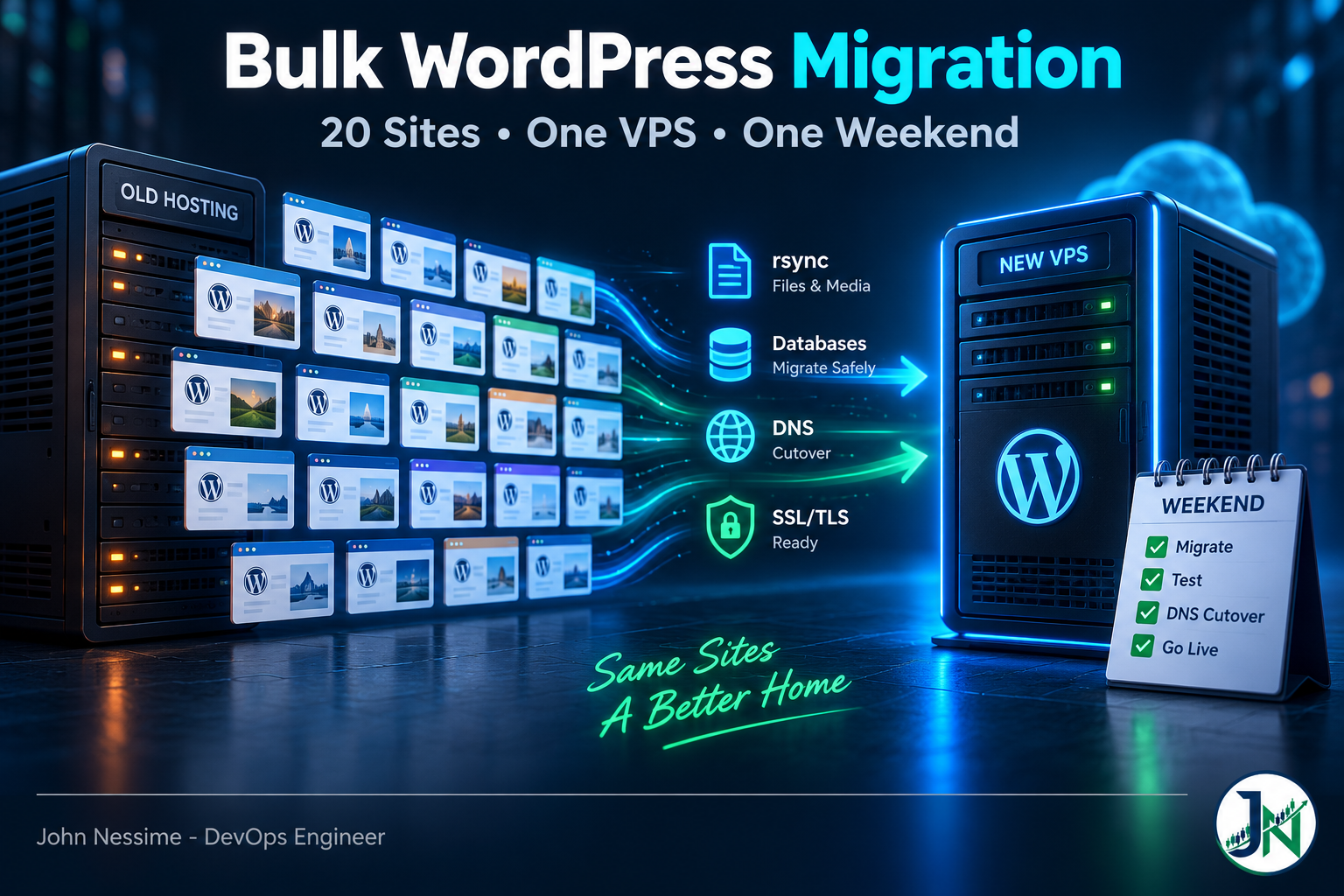
This is the process I use for fleet moves onto a single VPS: the manifest that makes the weekend repeatable, the two-pass sync, the database step people rush, the certificate limits that bite specifically at fleet scale, and a cutover order that keeps rollback cheap. It assumes SSH on both boxes and some comfort on the command line.
The failure that actually costs you: writes landing on the old server
Every migration guide tells you to lower your TTL. Almost none of them tell you what happens in the gap afterwards, and the gap is where the money goes.
Here is the mechanism. You change the A record. Most resolvers pick up the new IP inside the TTL window. Some do not: corporate resolvers that clamp minimum TTLs, ISP resolvers that ignore short values, browsers holding a connection open, a mail server that resolved the host an hour ago. For those clients, the old server is still the site. It still has a working database. It still accepts comments, form entries, orders, user registrations and password resets.
Nothing errors. Nothing logs. The write succeeds on a database you are about to throw away.
There are only two honest answers to this, and picking one per site is the first real decision of the weekend.
- Accept the loss. Fine for brochure sites, documentation, most blogs. A missed comment is not a business problem.
- Make the old server read-only the moment DNS changes. Mandatory for anything with a checkout, a booking flow, a members area or a lead form that feeds a sales process.
Read-only in practice means maintenance mode on the old copy, a static holding page on the old vhost, or pointing the old install’s wp-config.php at a database user with SELECT only. Any of those turns silent data loss into a visible error the visitor can react to. Someone who sees “temporarily unavailable” comes back. Someone whose order vanished does not.
Do not skip this because the old server “will be off soon”. The window between DNS change and old server shutdown is the longest, least supervised part of the whole weekend.
Build the fleet manifest before you touch a server
Twenty sites is the point where memory stops working. You will not remember which one runs an old PHP branch, which one has a hardcoded absolute path in a theme, which one has MX records pointing somewhere else entirely.
So the first artifact is a table. One row per site, filled in before anything moves.
- Document root and database name
- Current
siteurlandhomevalues, exactly as stored - PHP version the site currently runs under
- Disk size of the document root and dump size of the database
- Where DNS is authoritative, and who holds the login
- Whether mail for that domain is on this server or elsewhere
- Does it take writes from the public: comments, forms, checkout, registration
- Cache and object cache in use
- Cutover batch number and rollback owner
Most of that you can pull off the old server rather than typing it. This walks a DirectAdmin-style layout and prints a tab-separated line per WordPress install:
for d in /home/*/domains/*/public_html; do
  [ -f "$d/wp-config.php" ] || continue
  printf '%st%st%sn'
    "$d"
    "$(wp --path="$d" option get siteurl --skip-plugins --skip-themes 2>/dev/null)"
    "$(du -sh "$d" | cut -f1)"
done
The --skip-plugins --skip-themes flags matter here. Without them WP-CLI boots the full site, and one broken plugin on one install will stop your inventory halfway through with a fatal error.
The DNS column is the one people fill in last and regret. Check where each zone actually lives before the weekend, not during it. A domain whose nameservers point at Cloudflare while you are editing records in the old host’s DNS panel will not move no matter how many times you refresh.
Rebuild the stack, don’t clone the disk
There is a tempting shortcut where you image the old server and restore it onto the new one. It usually works and it is usually the wrong call, because you have just carried across every accumulated fix, every orphaned config, and every reason the old box got slow enough to need replacing.
Build the destination clean. Whatever the provider is, whether that is Contabo, InterServer, Hetzner or a machine you already have, the sequence is the same: base OS, web server, PHP with the version and extensions the manifest says you need, database server, control panel if you use one, firewall, then a hardening pass.
Two things to get right before any files land.
PHP versions. If three sites need an older branch and seventeen are happy on current, install both and make the per-site assignment explicit in the manifest. Discovering the mismatch after cutover means a white screen on a live domain instead of a note in a spreadsheet. Check the extension list too, not just the version number, because imagick, soap and intl are the usual absentees.
Access during the weekend. If you lock SSH and the control panel behind an IP allowlist, decide beforehand what your source address will be. A rotating home IP is how people lock themselves out of their own migration at two in the morning. A dedicated-IP option from a VPN provider such as NordVPN or Surfshark gives you one stable address to allowlist; a second admin path on a non-standard port works too. Deciding at the moment you are locked out does not.
Two-pass rsync beats one big copy
The mistake at fleet scale is treating the file copy as a cutover-day task. Copy everything on cutover day and your maintenance window is however long twenty document roots take, which for a media-heavy fleet is hours you do not have.
Split it. Do a warm sync days in advance while both sites are live, then a delta sync at cutover that moves only what changed.
Warm sync, run from the old server, no deletes:
rsync -aHAX --numeric-ids --info=progress2
  -e "ssh -p 22"
  /home/user/domains/example.com/public_html/
  root@NEW_SERVER_IP:/home/user/domains/example.com/public_html/
What those flags buy you: -a preserves permissions, times, symlinks and ownership; -H keeps hard links, which some backup plugins and dedup schemes rely on; -A and -X carry ACLs and extended attributes; --numeric-ids stops rsync remapping ownership through name lookups when the UIDs differ between boxes, which is exactly what happens when the new server creates users in a different order.
Delta sync at cutover, same command with one addition:
rsync -aHAX --numeric-ids --delete --info=progress2
  -e "ssh -p 22"
  /home/user/domains/example.com/public_html/
  root@NEW_SERVER_IP:/home/user/domains/example.com/public_html/
--delete removes files on the destination that no longer exist on the source. It is what makes the second pass an accurate mirror rather than a merge of two states. It is also the flag that will destroy your afternoon if you get the paths wrong, so check the trailing slashes: a source path ending in a slash copies the contents of the directory, one without it copies the directory itself, one level deeper than you meant.
Run the delta pass once with --dry-run before running it for real. And on SELinux systems, relabel the tree afterwards: files arriving over rsync carry contexts the web server may not accept, and that produces a 403 which has nothing to do with permission bits.
Databases last, and never with sed
Files can be stale for a few days. Databases cannot. Dump each database as late as you reasonably can, immediately before that site’s cutover, not on Friday for a Sunday move.
# on the old server, per site
wp --path=/home/user/domains/example.com/public_html db export
  /root/migration/example.com.sql --skip-plugins --skip-themes
Import on the new box, then handle URLs. If the domain is not changing, you may have nothing to replace. If the site is moving from HTTP to HTTPS, or from a staging hostname, or from a temporary preview domain you used for testing, you do.
The rule that matters: do not run a find-and-replace over the SQL file with sed. WordPress stores widget settings, theme options, page builder layouts and plugin config as PHP serialized arrays, and every serialized string carries a byte-length prefix. Change the string without recalculating the prefix and the array fails to unserialize. The site does not error loudly. It loses its widgets, or its theme options revert to defaults, or the page builder renders an empty page.
WP-CLI unserializes, replaces and reserializes, which is why it is the only tool I use for this.
wp search-replace 'http://example.com' 'https://example.com'
  --all-tables-with-prefix
  --precise
  --skip-columns=guid
  --report-changed-only
  --dry-run
Read the dry-run output before you commit. Each flag earns its place: --all-tables-with-prefix catches plugin tables that share your prefix and would otherwise be skipped, --precise forces a full unserialize pass on every column instead of the faster string-level path, and --skip-columns=guid leaves the GUID column alone because feed readers use it as an identifier, not as a URL to fetch. Drop --dry-run to apply.
Flush the object cache afterwards if the site uses one. A stale Redis or Memcached entry will happily serve you the old values and convince you the replacement failed.
TLS at fleet scale: where Let’s Encrypt rate limits actually bite
Twenty certificates in one weekend is where a limit you have never noticed becomes the thing that blocks you.
Let’s Encrypt publishes its limits and they are worth reading properly before a fleet move. Two of them are the ones that catch migrations.
- New certificates per registered domain. Up to 50 certificates per registered domain every 7 days, counted globally across all accounts. If your twenty sites are twenty separate registered domains, you are nowhere near it. If they are subdomains of one or two parent domains, which is common for an agency fleet, you can burn through it.
- Authorization failures per identifier per account. Up to 5 failures per hostname per account per hour, refilling at one every 12 minutes. This is the one that actually bites, because it is triggered by the exact thing you are doing: requesting a certificate for a hostname whose DNS still points at the old server, so the HTTP-01 challenge is served by the wrong machine and fails.
Order matters as a result. If you issue before DNS moves, HTTP-01 fails. If you issue after DNS moves, visitors hit a certificate error in the gap. Three ways out, in the order I reach for them:
- DNS-01 validation. Proves control through a TXT record instead of an HTTP request, so it does not care where the A record points. You can issue every certificate before touching DNS. This is the clean answer if your DNS provider has an API your ACME client supports.
- Cut DNS first, issue immediately after. Simple, and the exposure is short if you are watching. Batch it so you are never waiting on twenty challenges at once.
- Copy the existing certificates and keys across. Buys you a bridge until the new server can renew on its own. Only viable if you control the old server’s filesystem and the certificates have real time left.
Whichever you choose, test the plumbing against the staging environment first. Most ACME clients expose this as a dry-run mode, and it exists precisely so you can fail as many times as you like without spending production budget.
One more thing that catches people: if any site has HSTS enabled with a long max-age, browsers that have seen it will refuse to fall back to HTTP. There is no grace period and no way to talk them out of it. Those sites need a valid certificate on the new server from the first request, which pushes them firmly toward DNS-01 or a copied certificate.
Planning the cutover order for a bulk WordPress migration
Do not move twenty sites at once. Batch them, and batch by risk rather than alphabetically or by size.
- Batch one: the throwaways. Two or three low-traffic sites you own or that nobody would notice. This batch exists to prove the stack, not to make progress.
- Batch two: the ordinary majority. Standard brochure and content sites, no checkout, no logins that matter.
- Batch three: the ones with writes. Stores, membership sites, anything with a form feeding a sales process.
- Batch four: the awkward ones. Custom stacks, odd PHP requirements, third-party integrations that whitelist your server IP.
Stop between batches. Look at the error logs on the new server, not just the homepages. Twenty sites failing the same way is one problem; catching it after three is a fifteen-minute fix, catching it after twenty is a rollback.
The per-site sequence inside a batch:
- Drop the TTL on that domain’s records to a low value, at least a day ahead.
- Run the delta rsync.
- Dump, transfer and import the database.
- Run search-replace if the URL is changing at all.
- Test through a hosts-file entry or a resolved request, before DNS moves.
- Change the A and AAAA records.
- Put the old copy read-only.
- Verify from outside, then move to the next site.
Step five is the one people skip and should not. You can send a request to the new server as if DNS had already changed, without changing anything:
curl -sSI --resolve example.com:443:NEW_SERVER_IP https://example.com/
curl -sS --resolve example.com:443:NEW_SERVER_IP https://example.com/wp-login.php | head -n 20
That gives you real status codes, real redirects and a real TLS handshake against the new box while the live site is untouched. If that returns a 301 loop or a 500, you have found it before any visitor did.
Cron, email, and the things that run twice
During the overlap window you have two live copies of every site. Both have a database. Both have a scheduler.
WordPress schedules through wp-cron.php, fired by visitor traffic. The old server still gets traffic, so it still fires cron, so it still sends the newsletter, still processes the subscription renewal, still runs the backup plugin. Subscribers get things twice. Worse, the site’s system crontab came across in your file sync and is now also running on the new box.
Handle it explicitly. On the old copy, disable the loopback scheduler when you make it read-only:
define( 'DISABLE_WP_CRON', true );And on the new server, set up a real system cron per site rather than leaving it to traffic, because a site with no traffic yet has no scheduler at all:
wp --path=/home/user/domains/example.com/public_html cron event run --due-nowWrap that in a cron entry or a systemd timer at whatever interval the site needs, and check wp cron event list before assuming nothing important is queued.
Email is the parallel problem and it fails quietly in the other direction. Your sites now send from a new IP. If SPF still authorizes only the old server’s address, and DKIM keys did not come across, and DMARC is set to anything stricter than none, your transactional mail starts landing in spam. Nothing bounces visibly. Password resets just stop arriving and you hear about it in support tickets a week later.
Three records to check per domain. MX is the one not to touch casually: if mail lives elsewhere and you replace a zone wholesale, the mailboxes go with it.
- MX: unchanged unless mail is genuinely moving with you.
- SPF: add the new server’s IP before cutover, remove the old one after the overlap window closes, not during.
- DKIM: keys are per-server. Either copy them or regenerate and publish the new public key.
The more resilient answer is to stop sending through the server at all. Routing WordPress mail through an authenticated SMTP relay means outbound deliverability stops depending on which machine the site happens to live on, which makes the next migration a non-event.
Troubleshooting the weekend
Redirect loop on the new server. Usually siteurl and home disagreeing with what the vhost or reverse proxy is doing about HTTPS. Check both values with wp option get siteurl and wp option get home. If the site sits behind a proxy or CDN that terminates TLS, WordPress may see HTTP on the back end and redirect forever.
Site loads, media does not. Either uploads did not finish syncing, ownership is wrong, or database paths still reference the old host. Compare a file listing on both sides before assuming it is a database problem.
Widgets or theme options empty after import. This is the serialization damage described earlier. It is not recoverable by re-running the replacement. Restore the database from the dump and redo the URL change with WP-CLI.
Certificate issuance failing repeatedly. Confirm what the challenge is actually hitting before retrying, because each failure spends part of your hourly authorization budget.
dig +noall +answer example.com A
dig +noall +answer @1.1.1.1 example.com A
openssl s_client -connect NEW_SERVER_IP:443 -servername example.com < /dev/null 2>/dev/null | openssl x509 -noout -subject -dates
The first query uses your local resolver, the second asks a public one directly, and the difference between them tells you whether you are looking at a real propagation state or your own DNS cache.
Site fine, admin slow. Often a plugin trying to reach an external service that whitelisted the old IP. Look for API integrations, license checks and payment gateways in the manifest’s awkward-ones column.
Common mistakes
- Lowering TTL on cutover day. The old value is still cached; the change has no effect for as long as the old TTL says.
- Cancelling the old server as soon as the sites load. Keep it running, read-only, for the whole overlap plus a margin. It is your rollback.
- Replacing an entire DNS zone instead of editing the A record, and taking MX, SPF and verification TXT records with it.
- Running search-replace before importing, or on the SQL file instead of the live database.
- Testing only the homepage. Homepages are static and cached. Test a login, a form submission, an admin page and an uploaded image.
- Leaving both schedulers live and finding out through duplicate customer emails.
- Assuming the new server’s PHP extension set matches the old one because the version number does.
- Treating rollback as a fleet-level decision. Per-site rollback is what keeps one bad site from stalling nineteen good ones.
Best practices for a fleet move
- Write the manifest first and update it as you go. It is the migration record and the handover document.
- Take a restorable backup of each site to somewhere off both servers before you start, and test restoring one. A backup you have not restored is a hypothesis.
- Warm sync early, delta sync at cutover, dump databases last. Batch by risk, and prove the stack on sites nobody will miss.
- Verify every site from outside with a resolved request before its DNS moves.
- Point uptime monitoring at the new IP before cutover, not after. UptimeRobot or Better Stack will tell you about a broken site faster than the client will.
- Make the old copy read-only at the moment of DNS change, not at the end of the weekend.
- Keep a rollback note per site: which records changed, what they were before, who can revert them.
- Re-check cache configuration after the move rather than assuming it carried over, whether that is WP Rocket, WP Fastest Cache or a server-level layer.
- Retire the old server on a scheduled date with a final archived backup, not by forgetting to renew it.
Frequently asked questions
Is a bulk WordPress migration of 20 sites realistic in one weekend?
Yes, if the preparation happens in the week before. The weekend itself should be delta syncs, database moves and DNS changes. If you are still installing PHP extensions on Saturday morning, the weekend is not long enough.
How low should I set the TTL, and how far ahead?
A low value like 300 seconds, set at least 24 to 48 hours before cutover so the previous TTL has fully expired everywhere. Going much lower than 300 buys little and increases query load. Raise it back after the migration settles.
Will moving hosts hurt my search rankings?
Changing the server behind an unchanged domain is not itself a ranking event. What hurts is what goes wrong during it: 5xx responses while crawlers visit, failed certificates, redirect loops, a staging copy left indexable. Keep URLs identical, keep the site responding, and check Search Console afterwards.
Can I use a migration plugin instead of the command line for this?
For one site, plugins are a reasonable choice and handle serialized data correctly. At twenty the arithmetic changes: twenty manual export and import cycles through a browser, with no dry run and no delta sync. The command line is repeatable and scriptable, which is the point at fleet scale.
How long should I keep the old VPS running?
At least a week after the last site cuts over, in read-only mode. Some problems only appear over a full traffic cycle: weekly scheduled jobs, integrations that call in periodically, mail arriving at the old MX. Keep an archived backup after you destroy it.
What if one site breaks after cutover?
Revert that site’s A record and lift the read-only restriction on the old copy. That is why the old server stays up and why rollback is per site. If you sync the database back afterwards, be careful not to overwrite writes that landed on the new server in the meantime.
Do I need to move email at the same time?
No, and separating them is usually wiser. Move web first, confirm it is stable, then plan mailbox migration as its own change with its own window. Combining them means a single mistake in one DNS zone takes down both.
The one thing worth remembering
A bulk WordPress migration is not twenty small migrations. It is one process run twenty times, and the difference is that at scale the visible failures get caught while the invisible ones do not.
The copy is the easy part. rsync and WP-CLI are reliable, well documented and boring. What costs you is the overlap window: two servers both answering, both writing, both scheduling, for hours after you have mentally finished. Decide before the weekend what happens to writes on the old server, make that decision per site, and act on it at the moment DNS changes rather than at the end.
Do that, batch by risk, and keep a rollback that works at the level of a single site, and twenty sites in a weekend is an ordinary piece of work rather than a gamble.
Need help moving a fleet of sites?
Migrations are a good thing to have a second pair of hands on, because the expensive mistakes are the quiet ones. This is work I do regularly:
- Auditing an existing fleet and producing the migration manifest, batch order and rollback plan before anything moves
- Provisioning and hardening the destination VPS, including multiple PHP versions, control panel setup and firewall rules
- Running the sync and database cutover with WP-CLI, including URL replacement on serialized data
- Planning TLS issuance around ACME rate limits, including DNS-01 validation and automated renewal
- Sorting out post-migration email: SPF, DKIM, DMARC and moving transactional mail onto an authenticated relay
- Sitting in as the on-call engineer for the cutover window itself, or reviewing a plan you have already written
If you are planning a move and something in it worries you, send me the concrete thing: the site list, the current vhost config, the rsync output, the certbot error. I would rather look at the actual output than talk in general terms.