Someone messages you: “the site is down.” You open it — it loads fine on your machine. You ask them to try again, and it still fails. Nothing changed on the server. Nothing changed in the code. And somewhere in the back of your head a small voice says: it’s DNS again.
It usually is. Not because DNS is fragile, but because it’s the one layer where caching, delegation, and propagation all conspire to make the same domain behave differently depending on who’s asking and when. A record can be perfectly correct in your control panel and still resolve to the wrong IP for half the internet.
This article is the DNS troubleshooting workflow I actually use — the order of checks, the commands worth memorising, how to read what they tell you, and the specific failure patterns that show up over and over. No theory dumps. Just the path from “something’s broken” to “here’s exactly which record on which server is wrong.”
First, Get the Mental Model Right
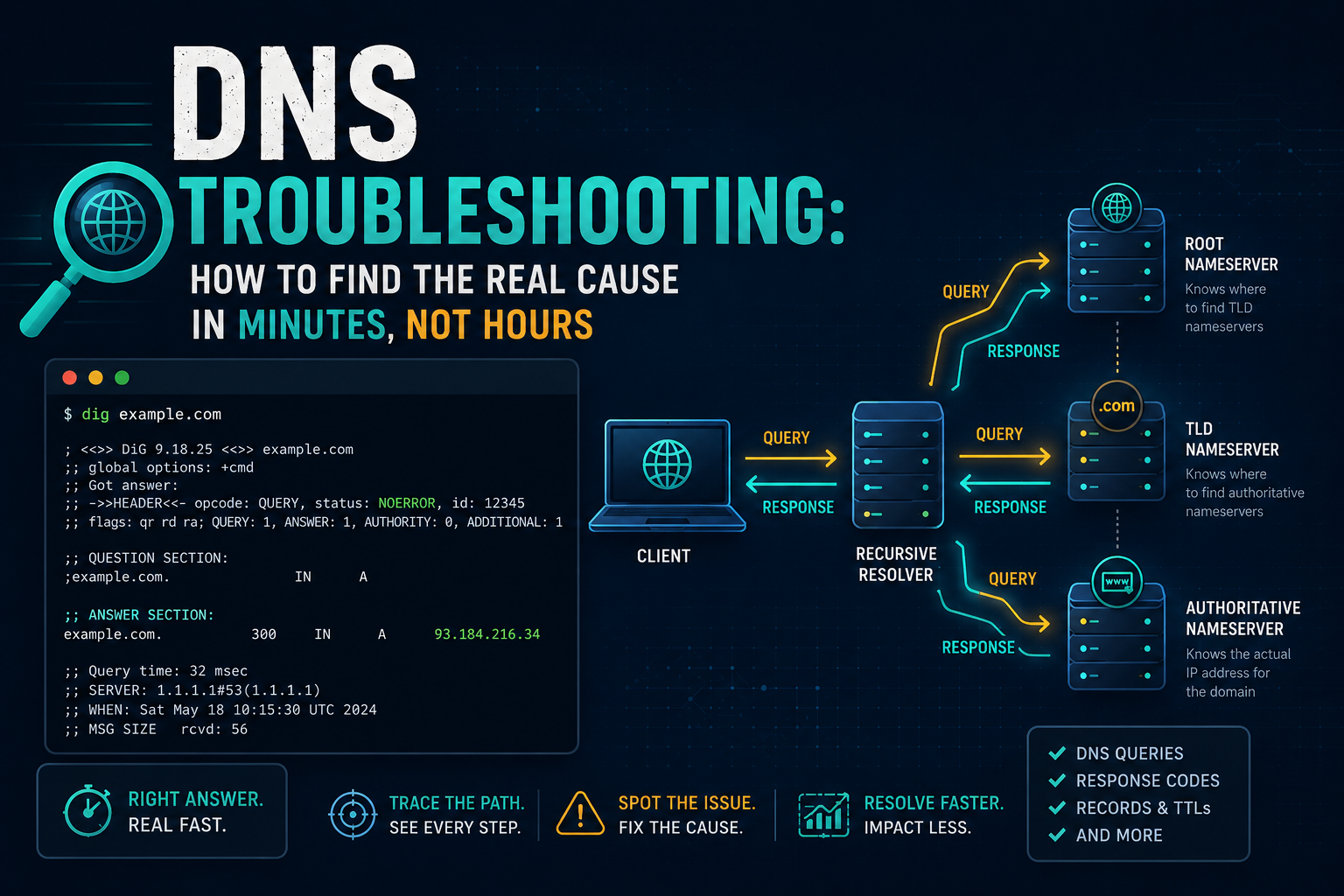
You can’t debug a system you don’t have a picture of. When a browser resolves example.com, several independent parties are involved, and any one of them can be the liar:
- The application — browsers keep their own short-lived DNS cache, and HSTS or connection pooling can mask changes entirely.
- The operating system — the local stub resolver,
/etc/hosts,nscd,systemd-resolved, or the Windows DNS Client service. - The recursive resolver — your router, your ISP, or a public resolver like 1.1.1.1 or 8.8.8.8. This is where most stale answers live.
- The delegation chain — root servers, then the TLD servers, then whichever name servers your registrar says are authoritative.
- The authoritative name server — the only place where the truth actually lives.
Effective DNS troubleshooting is just working down that list and asking each party the same question directly, instead of trusting whatever the browser tells you. The moment you find two parties giving different answers, you’ve found your boundary — and the problem is between them.
The Tools That Matter
You need surprisingly few. My honest ranking:
dig — the one you should learn properly
dig is the only tool that shows you everything: the query it sent, the response status, the TTL remaining, the authority section, and whether the answer came from a cache or from the source. On Debian and Ubuntu it lives in dnsutils; on RHEL-family systems it’s in bind-utils.
# Just the answer, nothing else
dig +short example.com A

# The full picture — status, flags, TTL, authority
dig example.com A

# Ask one specific resolver instead of the system default
dig @1.1.1.1 example.com A

# Ask a specific authoritative server directly
dig @ns1.example-dns.com example.com A
host — for quick sanity checks
host example.com
host -t MX example.com
host -t TXT example.com
nslookup — fine, but know its limits
nslookup is everywhere, including Windows, which is its main virtue. But it hides details you often need, and its “Non-authoritative answer” banner confuses people constantly — it simply means the answer came from a cache rather than the authoritative server. That’s completely normal. On Windows I reach for PowerShell instead:
Resolve-DnsName example.com -Type A
Resolve-DnsName example.com -Server 1.1.1.1
resolvectl — essential on modern Linux
If the machine runs systemd-resolved, your /etc/resolv.conf probably points at 127.0.0.53, which tells you nothing about the real upstream servers. resolvectl does:
resolvectl status
resolvectl query example.com
resolvectl statistics
getent — the reality check
dig talks to DNS. Your applications talk to the C library resolver, which also consults /etc/hosts and whatever else /etc/nsswitch.conf lists. When dig and the application disagree, this is the command that explains why:
getent hosts example.com
getent ahosts example.com
A Repeatable DNS Troubleshooting Workflow
This is the sequence. Don’t skip ahead — each step eliminates a whole class of causes, and jumping straight to the authoritative server is how you spend an hour fixing something that was never broken.
Step 1 — Confirm it’s actually DNS
Resolve the name, then connect to the resulting IP directly. If the IP works and the name doesn’t, it’s DNS. If neither works, you’re troubleshooting the wrong layer.
dig +short example.com A
curl -I --resolve example.com:443:203.0.113.10 https://example.com/
The --resolve flag is underrated. It forces curl to use an IP you specify while still sending the correct Host header and SNI, which lets you test the web server as if DNS were already fixed. Replace 203.0.113.10 with the IP you expect.
Step 2 — Compare local vs public resolvers
dig +short example.com A
dig +short @1.1.1.1 example.com A
dig +short @8.8.8.8 example.com A
dig +short @9.9.9.9 example.com A
If your local answer differs from all three public resolvers, the problem is on your side — a cache, a hosts file entry, a VPN pushing internal DNS, or a router doing something creative. If all four agree but the answer is wrong, the problem is upstream at the authoritative layer.
Step 3 — Find out who is actually authoritative
This is the step people skip, and it’s the one that catches the nastiest problems. The name servers listed in your DNS provider’s dashboard are not necessarily the ones the internet is using.
# What the parent zone (the registry) says
dig +short NS example.com

# What the zone itself says, straight from one of those servers
dig @ns1.example-dns.com example.com NS
Those two lists should match. When they don’t, you’ve usually found a half-finished DNS migration: the registrar still delegates to the old provider, so the world keeps reading a zone nobody has updated in months.
Step 4 — Query every authoritative server individually
A zone with four name servers can be inconsistent across them if a zone transfer failed. Intermittent, “it works every third time” problems are almost always this. Compare the SOA serial on each:
# Pull the SOA record from every authoritative server in one shot
dig +nssearch example.com

# Or check them one by one
dig +short @ns1.example-dns.com example.com SOA
dig +short @ns2.example-dns.com example.com SOA
Different serial numbers mean the secondaries haven’t caught up with the primary. Different answers for the same record mean something is genuinely broken in replication.
Step 5 — Walk the delegation chain
When nothing else explains it, follow the query the way a recursive resolver would — from the root, down through the TLD, to the authoritative servers:
dig +trace example.com ARead it top to bottom. Each block is one hop. The point where the output stops making sense — a referral to servers that don’t answer, a missing glue record, an unexpected NXDOMAIN — is your break point. This single command has saved me more time than any other in DNS troubleshooting.
Reading dig Output Without Guessing
The status line in a dig response tells you the category of failure immediately. Learn these four and you’ve eliminated most of the guesswork.
- NOERROR — the query succeeded. Note that NOERROR with an empty answer section is not a failure: it means the name exists but has no record of the type you asked for. Asking for an A record on a name that only has MX records gives you exactly this.
- NXDOMAIN — the name does not exist at all. Not a typo in the record; the label itself isn’t in the zone. Check for a missing record, a misspelled hostname, or a zone that isn’t loaded.
- SERVFAIL — the resolver tried and failed. This is the ambiguous one, and in practice it usually means DNSSEC validation failure, an authoritative server that’s unreachable or refusing queries, or a broken delegation.
- REFUSED — the server you asked is not willing to answer for that zone. Typically you’re querying a server that isn’t authoritative and doesn’t do recursion for you.
Two other things worth reading in every response:
- The
aaflag — present when the answer came from an authoritative server. If it’s missing, you’re looking at a cached answer, and the TTL tells you how stale it might be. - The TTL column — on a cached answer this counts down. Query the same resolver twice a few seconds apart; if the TTL drops, you’re being served from cache. If it stays constant, you’re hitting the source.
The Propagation Myth (and What’s Really Happening)
“DNS propagation takes 24 to 48 hours” is the most repeated and least accurate sentence in web hosting. Nothing propagates. When you change a record, the authoritative server has the new value instantly. What takes time is the expiry of cached copies held by thousands of independent resolvers — and that duration is entirely determined by the TTL you set before the change.
The practical consequence: lowering a TTL after you’ve made the change does nothing for anyone who already cached the old value. Plan ahead instead.
- Well before a migration, drop the TTL on the records you’ll change to something short — 300 seconds is a common choice.
- Wait at least the length of the old TTL so the short value fully replaces it in caches.
- Make the actual change. Old cached answers now expire within minutes.
- Verify against several public resolvers and from a couple of different networks.
- Once everything is stable, raise the TTL back to something sane — an hour or more — so you’re not paying for lookups you don’t need.
The TTL you set today determines how painful next month’s migration will be. It’s the cheapest piece of planning in infrastructure work, and the one most consistently skipped.
One more thing people miss: negative caching. When a lookup returns NXDOMAIN, resolvers cache that “doesn’t exist” answer too, for a duration derived from the minimum field in the zone’s SOA record. So if you query a hostname before creating it, you may keep getting NXDOMAIN for a while even after the record is live. Check what you’re in for:
dig +short example.com SOAThe last number in that output is the negative caching TTL. Resist the urge to test a hostname before you’ve actually created it.
Failure Patterns You’ll Meet Again and Again
A CNAME on the zone apex
You cannot put a plain CNAME on the root of a domain. The apex must carry SOA and NS records, and a CNAME is not allowed to coexist with other records at the same name. Providers work around this with ALIAS, ANAME, or “CNAME flattening” records that resolve the target server-side and return an A record. If your root domain misbehaves while www is fine, this is the first thing to check.
Stale cache — everywhere at once
Correct at the authoritative server, wrong on your machine. Clear caches from the outside in:
# Linux with systemd-resolved
sudo resolvectl flush-caches

# Linux with nscd
sudo systemctl restart nscd

# macOS
sudo dscacheutil -flushcache
sudo killall -HUP mDNSResponder

# Windows (run as Administrator)
ipconfig /flushdns
Then remember the browser. Chromium-based browsers keep a separate cache you can clear at chrome://net-internals/#dns. And if the site uses HSTS, a browser may refuse to fall back to HTTP regardless of what DNS says — test with curl before you conclude anything from a browser.
A forgotten line in /etc/hosts
Someone adds a hosts entry during a migration to test the new server, and never removes it. Six months later the server is “randomly” hitting the wrong backend. It costs three seconds to rule out:
grep -i example.com /etc/hosts
getent hosts example.com
DNSSEC validation failures
A domain with broken DNSSEC returns SERVFAIL from validating resolvers while working perfectly on non-validating ones. That produces the maddening symptom where the site loads for some users and not others, with no geographic pattern.
The diagnostic trick is +cd, which disables validation. If the query fails normally but succeeds with +cd, DNSSEC is your culprit:
dig @1.1.1.1 example.com A
dig @1.1.1.1 +cd example.com A

# Show the DNSSEC records themselves
dig example.com DNSKEY +dnssec
dig example.com DS

# delv performs validation and explains the outcome
delv example.com A
The usual cause is a DS record at the registrar that no longer matches the keys published in the zone — classic after changing DNS providers without disabling DNSSEC first. Always turn DNSSEC off at the registrar before migrating name servers, then re-enable it once the new provider is live and stable.
Split-horizon DNS surprises
Internal resolvers hand out private addresses; external resolvers hand out public ones. Perfectly intentional — until a VPN, a container, or a misconfigured search domain puts a client on the wrong side of the split. When a name resolves differently depending on where you run the query, compare the local resolver against a public one and check whether a VPN profile is pushing its own DNS servers.
Proxied records hiding the origin
If a domain sits behind Cloudflare or a similar proxy, public DNS returns the proxy’s IP, not your server’s. That’s the whole point — but it means you cannot verify an origin change through public DNS at all. Query the authoritative provider’s own API or dashboard for the real record value, and test the origin directly with curl --resolve.
Wildcards masking a missing record
A * record in the zone means every hostname resolves — including the ones you typo’d, and including subdomains you thought you’d deleted. If everything resolves but half of it points somewhere unexpected, check for a wildcard before you go hunting for phantom records.
Missing trailing dots in zone files
Hand-editing BIND zone files? A record value without a trailing dot gets the origin appended to it. Write mail.example.com instead of mail.example.com. and you’ve just created mail.example.com.example.com. Validate before reloading:
named-checkconf
named-checkzone example.com /var/named/example.com.zone
And bump the SOA serial. A zone edit without a serial increment won’t reach the secondaries, which is exactly the inconsistency you were chasing in Step 4.
Containers and the ndots trap
Inside Kubernetes pods, /etc/resolv.conf commonly sets ndots:5. Any name with fewer than five dots gets tried against every search domain first, so an external lookup like api.example.com can generate several failed queries before the correct one. It works — it’s just slow, and under load it looks like intermittent DNS failure. Adding a trailing dot to fully qualify the name skips the search list entirely:
cat /etc/resolv.conf
dig api.example.com.        # note the trailing dot
DNS Troubleshooting for Email Delivery
Mail problems are DNS problems more often than they are mail-server problems. When messages bounce or land in spam, check these before touching the mail server config:
# Where should mail for this domain go?
dig +short example.com MX

# SPF and DMARC live in TXT records
dig +short example.com TXT
dig +short _dmarc.example.com TXT

# DKIM lives under a selector you choose
dig +short selector1._domainkey.example.com TXT

# Reverse DNS for the sending IP
dig -x 203.0.113.10 +short
Things that regularly go wrong here:
- Two SPF records. A domain must publish exactly one. Two SPF TXT records is a permanent error, and receiving servers are entitled to fail the check outright. Merge them into one.
- An MX pointing at a CNAME. MX targets must resolve to address records, not aliases.
- Missing reverse DNS. If the PTR record for your sending IP doesn’t match the hostname the server announces, expect a lot of spam folder.
- DKIM selector mismatch. The selector in the message header must match the one published in DNS — a detail that quietly breaks after a mail platform migration.
While you’re in TXT territory: if certificate issuance is failing, check for a CAA record. A CAA entry that only authorises one certificate authority will silently block every other one, and the error you get back from the ACME client rarely says “DNS.”
dig +short example.com CAAMistakes That Cost the Most Time
- Testing only in a browser. Browser caches, HSTS, service workers, and QUIC connection reuse will all lie to you. Confirm with
digandcurl. - Trusting the control panel. The dashboard shows what the zone should contain. Only a query against the authoritative server shows what it actually serves.
- Changing several things at once. Adjust one record, verify, then move on. Batch changes turn a five-minute fix into an archaeology project.
- Forgetting IPv6. A stale or wrong AAAA record produces “works for some people” behaviour, because dual-stack clients generally prefer IPv6. Always check
dig +short example.com AAAA. - Leaving DNSSEC enabled through a provider migration. The single most reliable way to take a domain fully offline for hours.
- Not documenting the zone before a migration. Export or record every record first. Rebuilding a zone from memory at 2am is not a plan.
Best Practices That Prevent the Next Incident
- Use at least two name servers, ideally on separate networks or providers. Single-provider DNS is a single point of failure for your entire presence.
- Keep TTLs deliberate. Long TTLs for stable infrastructure, short ones ahead of planned changes. Not the other way round.
- Monitor DNS resolution itself, not just HTTP endpoints. A check that queries your authoritative servers directly and alerts on a changed or missing answer catches problems before users do.
- Version-control your zone data if your provider supports API or zone-file export. Diffing two zone versions turns “what changed?” into a one-second question.
- Keep a record inventory — what each record is for, who owns it, and whether it’s still needed. Old A records pointing at decommissioned servers are a genuine security risk, not just clutter.
- Standardise your checks. A short script that runs your Step 1–5 sequence against a domain makes DNS troubleshooting repeatable instead of improvised.
A Quick Reference You Can Keep
# Basic resolution
dig +short example.com A
dig +short example.com AAAA

# Compare resolvers
dig +short @1.1.1.1 example.com A
dig +short @8.8.8.8 example.com A

# Authority and delegation
dig +short example.com NS
dig +trace example.com A
dig +nssearch example.com

# Cache behaviour
dig example.com A            # watch the TTL count down
dig +norecurse @1.1.1.1 example.com A   # cached-only lookup

# DNSSEC
dig +cd example.com A
delv example.com A

# Mail and verification records
dig +short example.com MX
dig +short example.com TXT
dig +short _dmarc.example.com TXT
dig -x 203.0.113.10 +short

# System-level view
resolvectl status
getent hosts example.com
cat /etc/resolv.conf
Frequently Asked Questions
How long does a DNS change really take to take effect?
At the authoritative server, immediately. For everyone else, up to the TTL that was in place when they last cached the record. If the old TTL was 3600 seconds, worst case is roughly an hour. The “24 to 48 hours” figure is a legacy of very long default TTLs and badly behaved resolvers, not a rule.
What’s the difference between SERVFAIL and NXDOMAIN?
NXDOMAIN is a definitive answer: the name doesn’t exist. SERVFAIL means the resolver couldn’t produce an answer at all — commonly a DNSSEC validation failure, an unreachable authoritative server, or a broken delegation. NXDOMAIN points you at the zone contents; SERVFAIL points you at the infrastructure.
Why does the site work for me but not for a colleague?
Different resolvers with different cache states, a hosts file entry on one machine, a VPN pushing internal DNS, an IPv6 versus IPv4 difference, or DNSSEC failing only on validating resolvers. Have both people run the same dig against the same public resolver — if the answers match, the difference is local to one machine.
Should I use dig or nslookup?
dig, whenever it’s available. It shows response status, flags, TTLs and the authority section, all of which you need for real DNS troubleshooting. Use nslookup or Resolve-DnsName when you’re on a Windows box without other tooling.
Do online “DNS propagation checker” sites actually help?
They’re useful for one thing: seeing what different resolvers around the world currently have cached. They won’t tell you why an answer is wrong, and they can’t see proxied origins or internal split-horizon zones. Treat them as a rough sanity check, not a diagnosis.
Can a CNAME point to another CNAME?
Technically yes, and resolvers will follow the chain — but every extra hop adds latency and another thing to break. Keep chains short, and never let one loop back on itself. Also remember a CNAME cannot coexist with other records at the same name, which is why it doesn’t belong on a zone apex.
Why do my DNS changes keep reverting?
Usually because something else owns the zone: an infrastructure-as-code pipeline, a control panel that rewrites records on certain actions, or an external DNS controller in a Kubernetes cluster. Decide on one source of truth and make every change through it.
Is switching to a public resolver a fix?
It’s a workaround for one user, not a fix for the domain. It’s genuinely useful as a diagnostic — if 1.1.1.1 gives the right answer and your ISP’s resolver doesn’t, you’ve isolated the problem to that resolver’s cache. But if the record itself is wrong, changing resolvers just changes who tells you the wrong thing.
Wrapping Up
Good DNS troubleshooting isn’t about knowing obscure record types. It’s about discipline: confirm it’s DNS, compare resolvers, find out who’s really authoritative, ask each of them directly, and follow the delegation chain when the answers stop agreeing. Five steps, in order, every time.
Do that consistently and most incidents collapse into something small and obvious — a stale cache, a TTL nobody lowered, a DS record left behind after a migration, a hosts entry from six months ago. The problems aren’t usually exotic. They’re just invisible until you ask the right party the right question.
Keep the quick-reference commands somewhere you can reach in thirty seconds, set your TTLs before you need them, and monitor resolution as seriously as you monitor uptime. Future you will appreciate it at 2am.
Need a Hand With DNS, Hosting or Cloud Infrastructure?
If you’re stuck on a DNS issue, planning a migration you’d rather not do twice, or you just want someone to review a zone before you flip the switch, I’m available for freelance work.
I work on DNS configuration and troubleshooting, domain and hosting migrations, SSL and certificate issues, email deliverability records (SPF, DKIM, DMARC), server setup and hardening, AWS and cloud infrastructure, and monitoring and alerting — plus WordPress performance and maintenance.
You can see my profile, past work and reviews on Upwork, and message me directly there with what you’re dealing with.
Got a DNS problem this article didn’t cover? Leave a comment describing the symptoms and what dig +trace shows — that output alone usually narrows it down fast.